
Who is this article for?
🗣️ All researchers (both admins and users)
⭐ All Recruit customers with a premium screening (aka double screening) add-on
What is video screening?
With video screeners, researchers can automatically prompt qualified participants to upload a video of themselves answering a question during the screening step—the fastest insight into their experience on a topic.
🛡️ Video screening can help you spot and remove fraudulent participants before they affect your study. To learn more about protecting your research from fraud, take our 4-lesson Academy course on Preventing and Recognizing Fraud.
How do I add video screening to my project?
📽️ Video screening is currently available for Recruit projects as part of our premium screening add-on
1. In the Research design section of the workspace, navigate to the Recruitment tab.
2. Under the “Review participants” section, you’ll see video screening as one of the premium screening options, under Manual review.
3. Check “Screen with in-app video question,” and click the “Add” button.
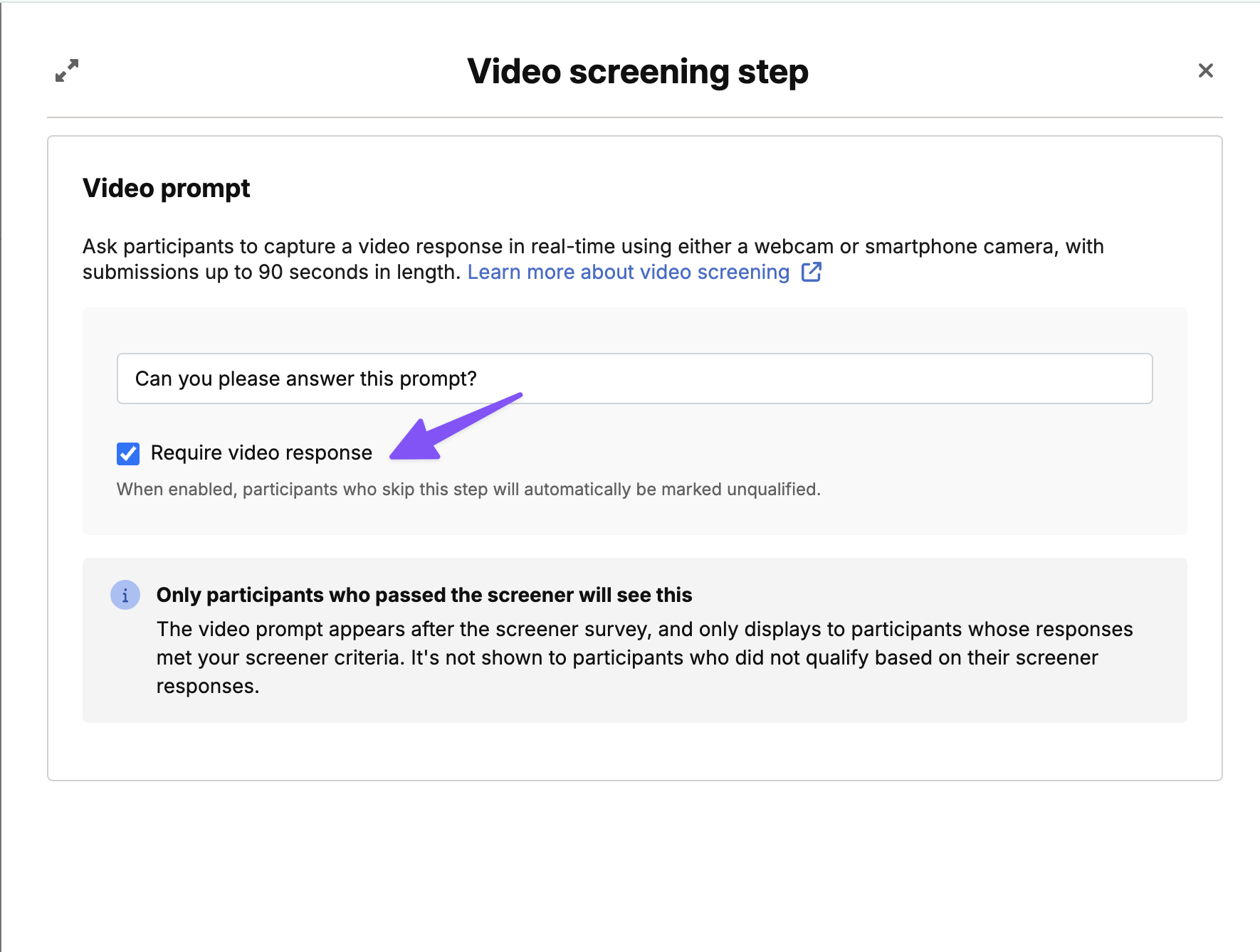
4. Enter your video prompt in the text box, choose to enable "Require video response" if needed, and click “Add to flow”.
💡Note: Only qualified participants will receive this video prompt during the screening process. Researchers can prompt participants to record and submit one 90-second (or less) video per study.
Researcher experience
Video screeners are the fastest way to understand participant quality and fit, as they verify the most information in the shortest amount of time. Researchers can immediately understand which participants have real, relevant experience on a topic, or confirm details like verifying identity or ownership of a product. Let’s walk through how to set up video screening in a project.
Set up video screening in your project
In the Research design section of the workspace, navigate to the Recruitment tab. Under the “Review participants” section, you’ll see video screening as one of the premium screening options, under Manual review.
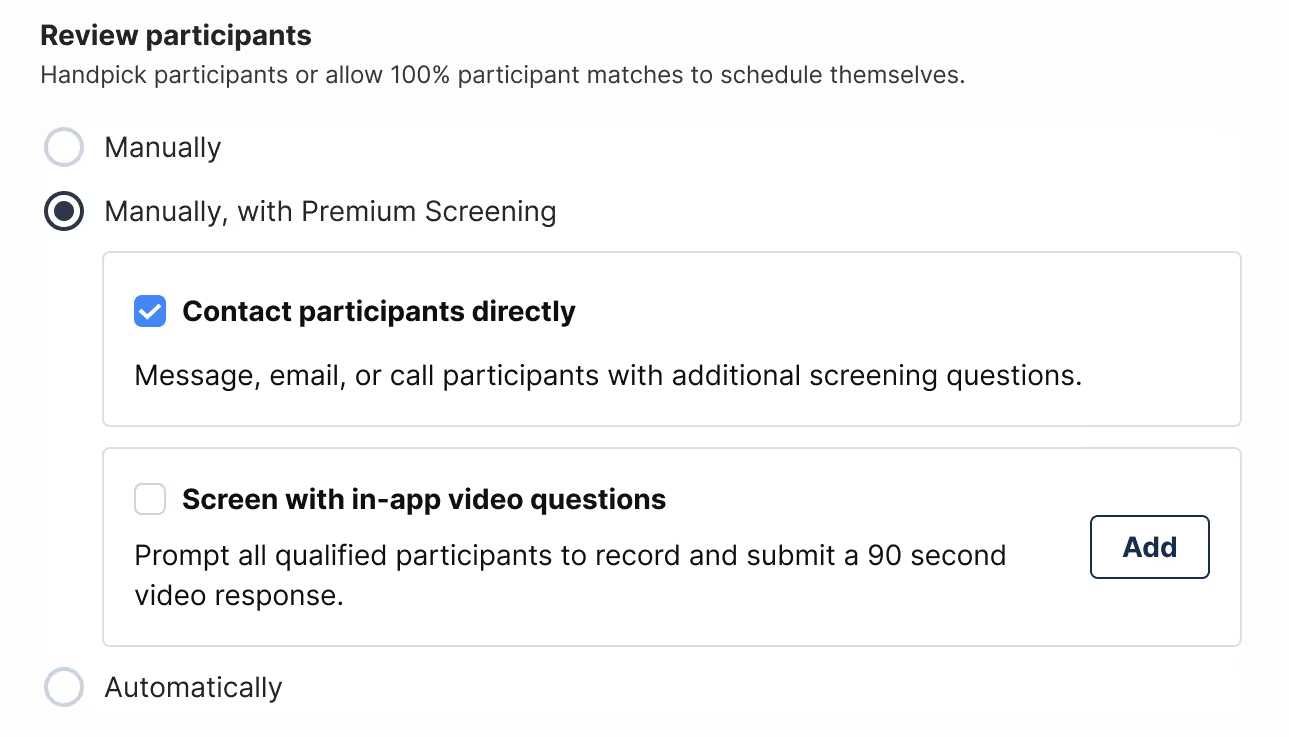
Check “Screen with in-app video question,” click the “Add” button, and enter your video prompt in the text box. You can have one video question per project.
To require the video response for qualification, enable the option below. Participants who skip this step will automatically be marked unqualified. If they end up returning later to submit a video, they can still qualify.
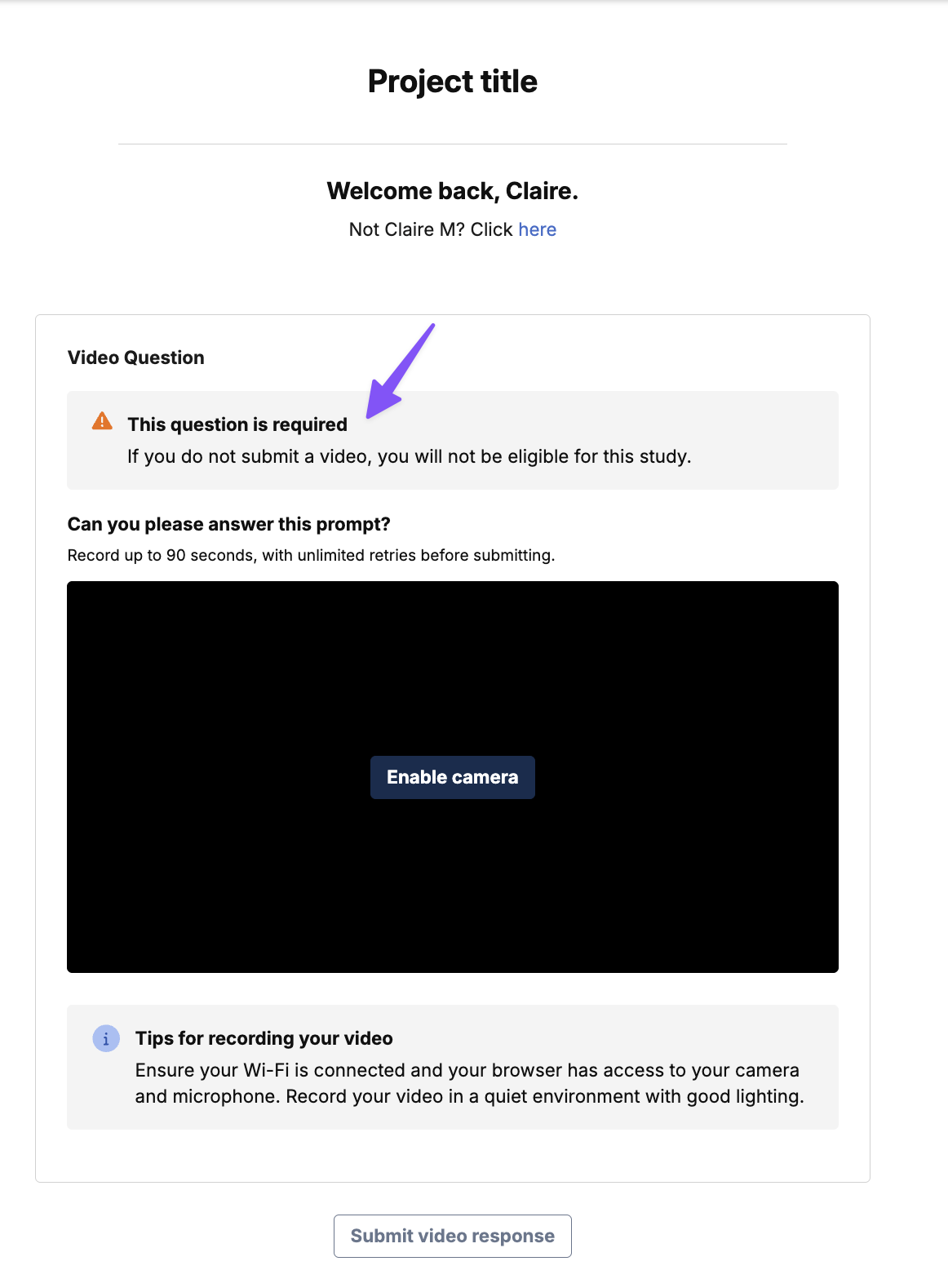
If video submission is required to be considered for the study, it will be stated clearly to the participant in the application flow.
It will of course depend on your study, but some example video prompts might look like this:
- Please share a recent experience driving a vehicle in a snowstorm.
- Please describe your recent experience using the Produce Mart mobile app.
- Walk me through a typical project working as a developer in the healthcare industry.
- Take us on a tour of your new Electric Vehicle and show us which feature you are most excited about. Be sure to capture the make and model of the car.
When answering your question, participants will be able to record a response that is 90 seconds long or less. Note that only qualified participants will receive this video prompt during the screening process.
To view or edit your video prompt, simply click the “Edit” button to make any changes.
Review participant video responses
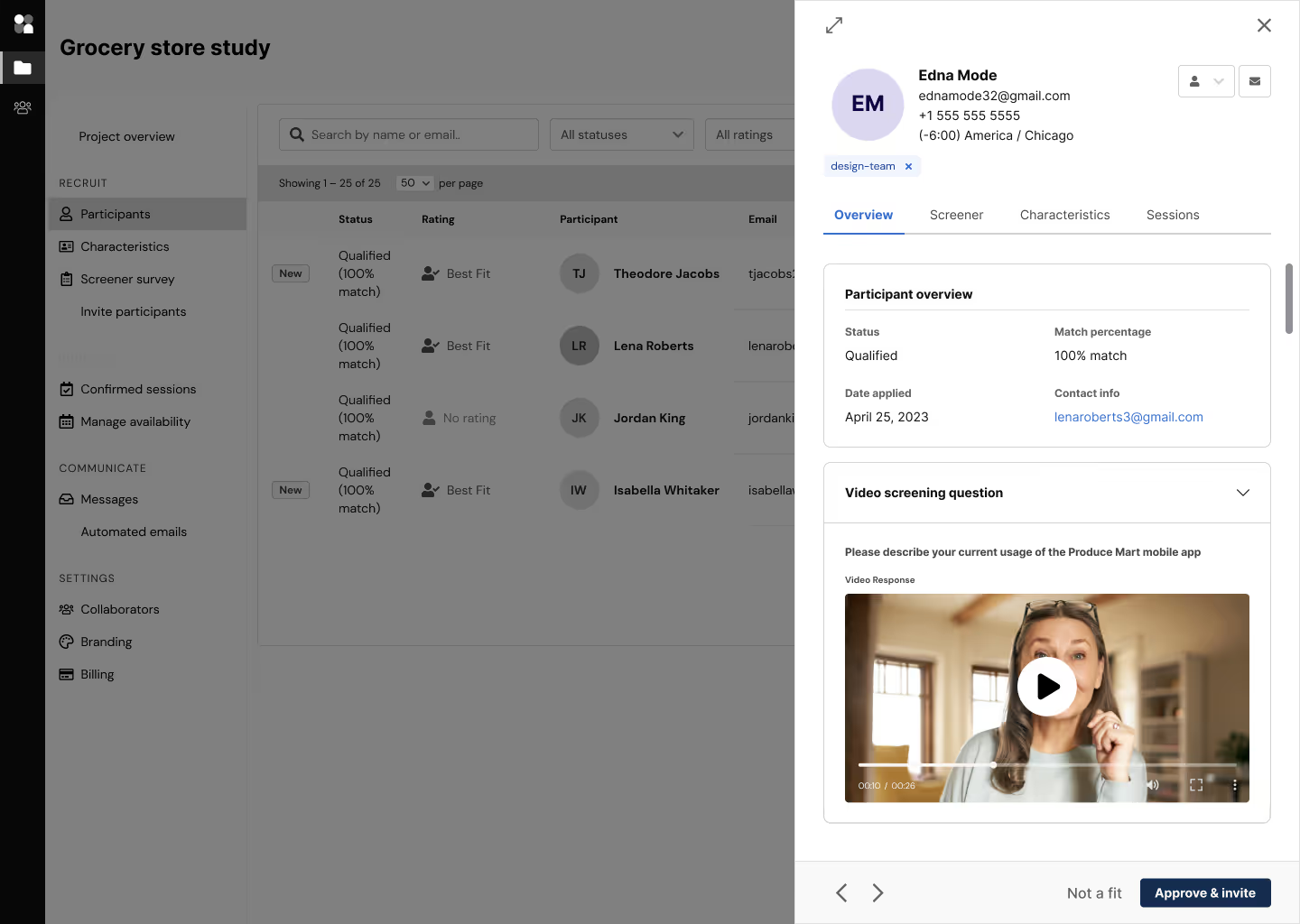
You can review submitted videos in the Participant management section of the workspace under the “Applicants” tab. Click on a participant’s profile to view their video response in their “Overview” section. From here, you can play their video (researchers cannot download video responses).
Participant experience
For participants, video screening offers a faster, more flexible in-app premium screening process. Participants complete video screeners immediately after applying and qualifying for a study, and can upload their video response via desktop or mobile. Let’s walk through the participant experience.
Recording a video response
Participants will see the video question immediately after completing the screener, if they have qualified (it will not show to unqualified participants). It will appear as a natural next step in the process. Participants can record a response up to 90 seconds long, and can review and re-record the video as many times as they’d like.
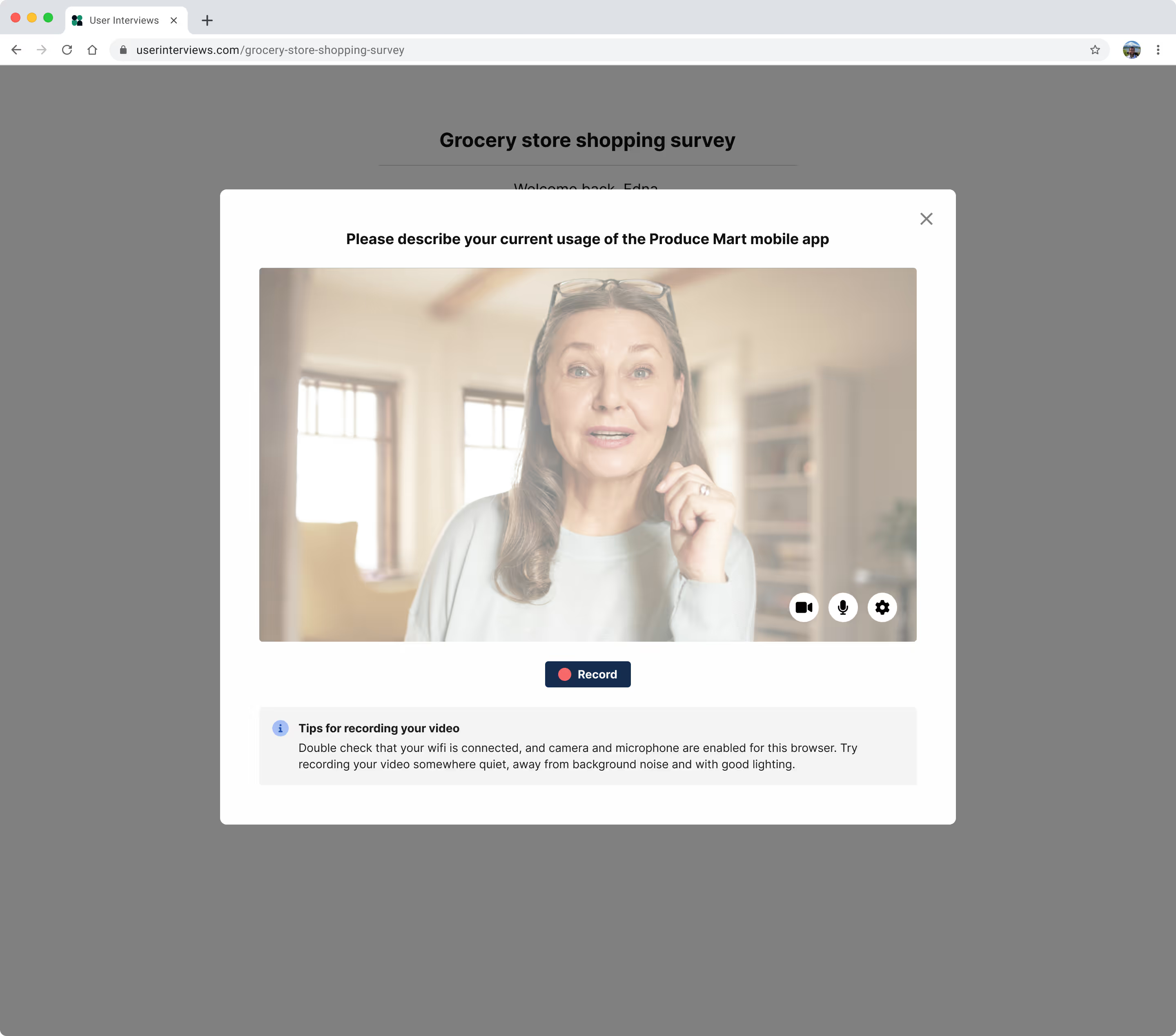
We include some recording tips with the prompt, such as double checking that their wifi is connected, their camera and microphone are enabled, and that they are in a quiet environment while recording.
Once they submit their video, they’re done! Their video response will appear in the “Overview” tab of their participant profile for review.
When should I use video screening for my project?
Video screening allows researchers to quickly and effectively conduct additional screening with little effort. Once set up in your project, video responses are automatically collected and presented in participant profiles for easy review. They are especially helpful for studies with highly specific recruits that require a high amount of participant verification.
Video screening use cases
There are multiple use cases for using video screening in your project. Some examples:
- Verify expertise and experience in an area—Do they have real, relevant experience and can they speak to it clearly?
- Verify participant identity by seeing their face—Are they who they say they are?
- Verify ownership of a specific product—Show me your smart watch, new car, etc.
- See a visual of a participant’s physical space—Show me what your current workspace looks like
- Mitigate fraudulent responses—Is the participant speaking authentically or reading off their answer from another source? (ex: chat GPT)
Video screening best practices
This will vary from project to project, but here are a few guiding best practices to follow when using video screening.
- Video response length: While the max length of a video response is 90 seconds, we recommend suggesting a specific length in your question, if you have a preference.
- Video prompt do’s and dont’s:
- Keep your video question clear and concise, ideally 1-2 sentences
- Avoid asking yes or no questions—use a broad prompt to elicit the participant’s opinions, experiences, and behaviors
- Provide clear expectations—i.e. Please show us your VR headset and explain what your favorite game is. Do not wear your headset during the video.
- Do not ask participants to share any sensitive information—i.e. Their driver’s license, address, etc.
- Using both manual screening options: Generally, using video screening on its own is completely sufficient for a project. However, you have the option to select both contacting participants directly and video screening in scenarios where you may need additional verification (message, email, or phone call) on top of the video response.
FAQ
Can I add video screening to any project? How much does it cost?
Video screening is a paid add on, included in premium screening (aka double screening). It is also available for upgrade on a project-by-project basis.
How do I add video screening to my project?
You can select video screening in the Recruitment tab of the project workspace, under the “Review participants” section. Under manual review, check the “Screen with in-app video question” option to add video screening.
How many video prompts can I ask participants?
Researchers can prompt participants to record and submit one 90-second video per study.
Who has access to participant videos? Can they be downloaded?
All collaborators on a project have access to participant videos responses. Videos cannot be downloaded by researchers.
Is it possible to video screen a participant who is not qualified?
No, you cannot video screen an unqualified participant. Instead, we recommend using our other manual premium screening method (reaching out to a participant via message, email, or phone call).
When should I use video screening for my project?
Video screening can be used in several ways. Some examples include verifying if someone has expertise on a topic and can speak to it clearly, verifying that they own a product, or verifying their identity.
Can I use both manual screening options?
Generally, using video screening on its own is completely sufficient for a project. However, you can select both contacting participants directly and video screening in scenarios where you may need additional verification (message, email, or phone call) on top of the video response.
Can I use both video screening and premium screening (aka "double screening")?
PAYGO researchers can choose only one of the two premium screening options, while subscription researchers who have premium screening in their subscription can opt to select both.
Are all participants required to answer the video screening prompt?
You have the option to mark the video response as "Required". When enabled, participants who passed the screener must submit a video response to qualify. Participants who skip the video will automatically be marked as unqualified.
What happens if a participant completes the initial screener but doesn't submit a video?
They won't be marked as qualified. Only participants who complete both steps — the initial screener and the video submission — will qualify for the study.
Can a participant come back to submit their video after skipping it?
Yes, if a participant submits the screener but skips the video step, they can return later to complete the video and become qualified.
Will participants know upfront that the video is required to qualify?
Yes, participants will see updated messaging before they begin, making clear that video submission is required to be considered for the study.
Can I switch the video screener between optional and required after my project goes live?
Yes, the setting can be changed at any time in the project setup. Changes will apply to participants who haven't yet completed the video step.
Could requiring video submission affect my qualification rate?
It may lower qualification rates, since participants who complete the initial screener but skip the video won't qualify. We recommend monitoring your project after enabling this setting.
Additional questions or concerns? Get in touch with us here 💡