
Who is this article for?
🗣️ All researchers (both admins and users)
⭐ Available for Recruit and Hub
What are quotas in research studies?
Quotas are predefined targets that help researchers ensure they’re recruiting the right mix of participants for a study. A quota specifies how many participants you want from a particular group. For example, you might want a balanced mix of different age groups, representation across regions, or a 50/50 split of Android and iOS users, just to name a few.
Researchers can create quota targets based on Recruit characteristics, screener question responses, or project tags. Quota progress updates in real-time as participants move through the project, so you can clearly see how you’re tracking towards your targets.
Why use quotas?
Researchers often aim for a balanced or representative sample, but manually tracking who fits which group can be time-consuming, error-prone, and is often managed in spreadsheets or ad hoc notes. Quotas remove this overhead by handling the tracking automatically in-app and lead to more representative, well-balanced research outcomes.
Using quotas can help you:
- Achieve the right mix of participants aligned to study goals
- Reduce manual work and mistakes from manual tracking
- Ensure representation across key attributes
- See real-time progress toward recruitment goals
- Filter by quota groups to understand the status of each segment
Common quota examples
Demographics
- 50% men, 50% women
- A mix of age groups (e.g. 5 participants aged 18-24, aged 25-34, aged 35-44)
- Representation across regions (e.g. 10 participants from the US West Coast, 10 from East Coast)
Device & Platform Usage
- Even split of iOS and Android users
- 8 desktop users, 8 mobile users
- An equal mix of users on specific browsers
Customer or Product Segments
- 10 new customers, 10 long-time customers
- A mix of free, trial, and paid plan users
- Equal representation of weekly active vs. monthly active users
Behavioral Criteria
- Participants who made a purchase in the last 30 days
- Participants who have used a feature at least 3 times
- A balance of frequent, occasional, and rare users
Screener-Based Responses
- 6 participants who answered “Yes” to a key behavior question; 6 who answered “No”
- 10 participants who have experience with “Tool A,” 10 with “Tool B”
- A set number of participants who perform a specific workflow or job task
Professional/Role-Based Segments
- Equal mix of designers, product managers, and engineers
- Specific counts for B2B, B2C, or enterprise customers
- A target number of participants from key industry verticals
Study-Specific Needs
- 12 participants who completed an onboarding flow; 12 who dropped off
- 8 participants who failed a task; 8 who succeeded
- Representation across experience levels—beginner, intermediate, expert
How to set up quota tracking
In the workspace, navigate from Research design > “Participant number & incentives” tab > the “Define quota targets” section.
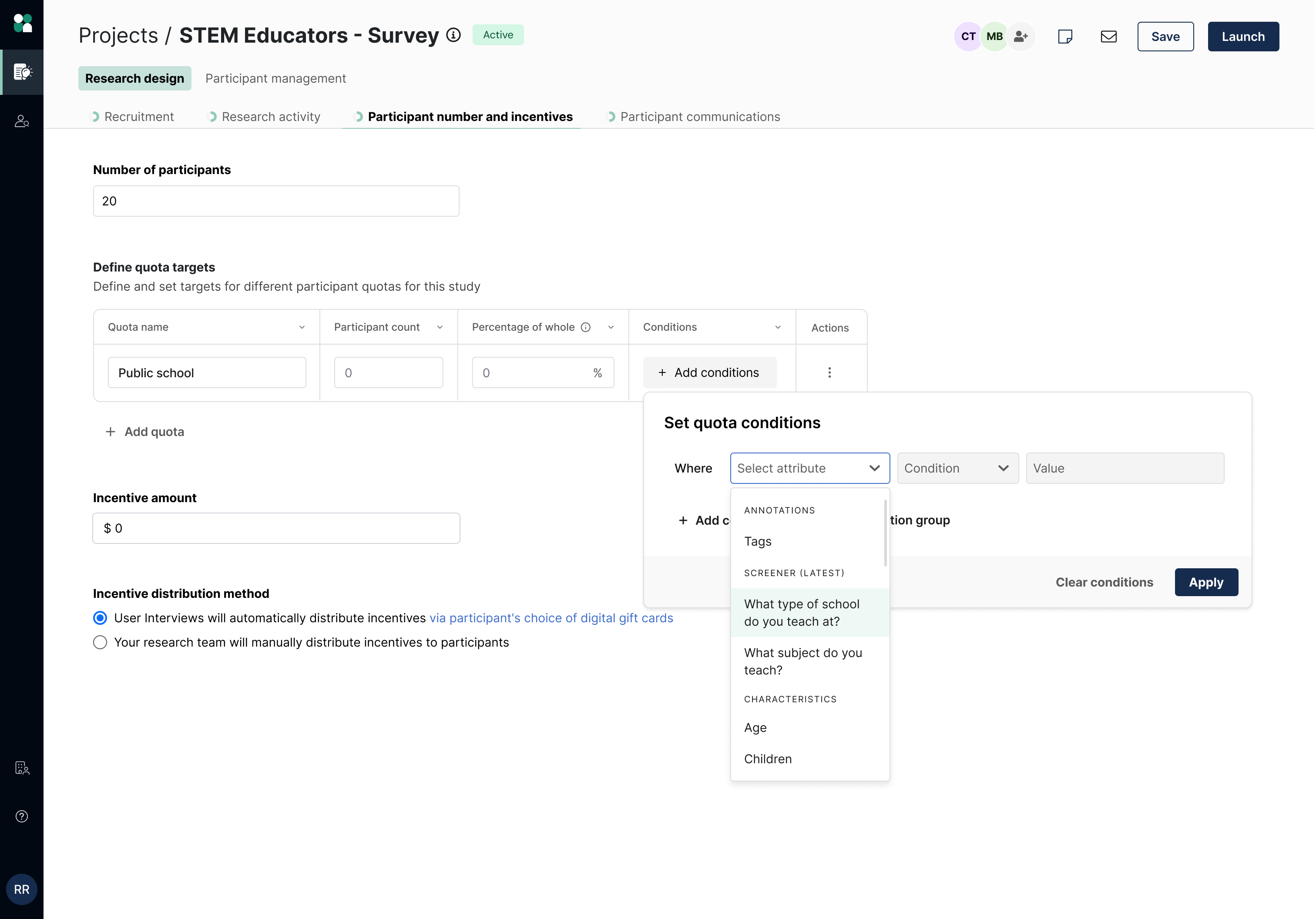
In this example, we’ll create quotas to ensure balanced feedback across school and educator types. Fill in the Quota name and Participant count. Then, set your quota conditions—these criteria can be defined by Recruit characteristics, screener question responses, or tags.

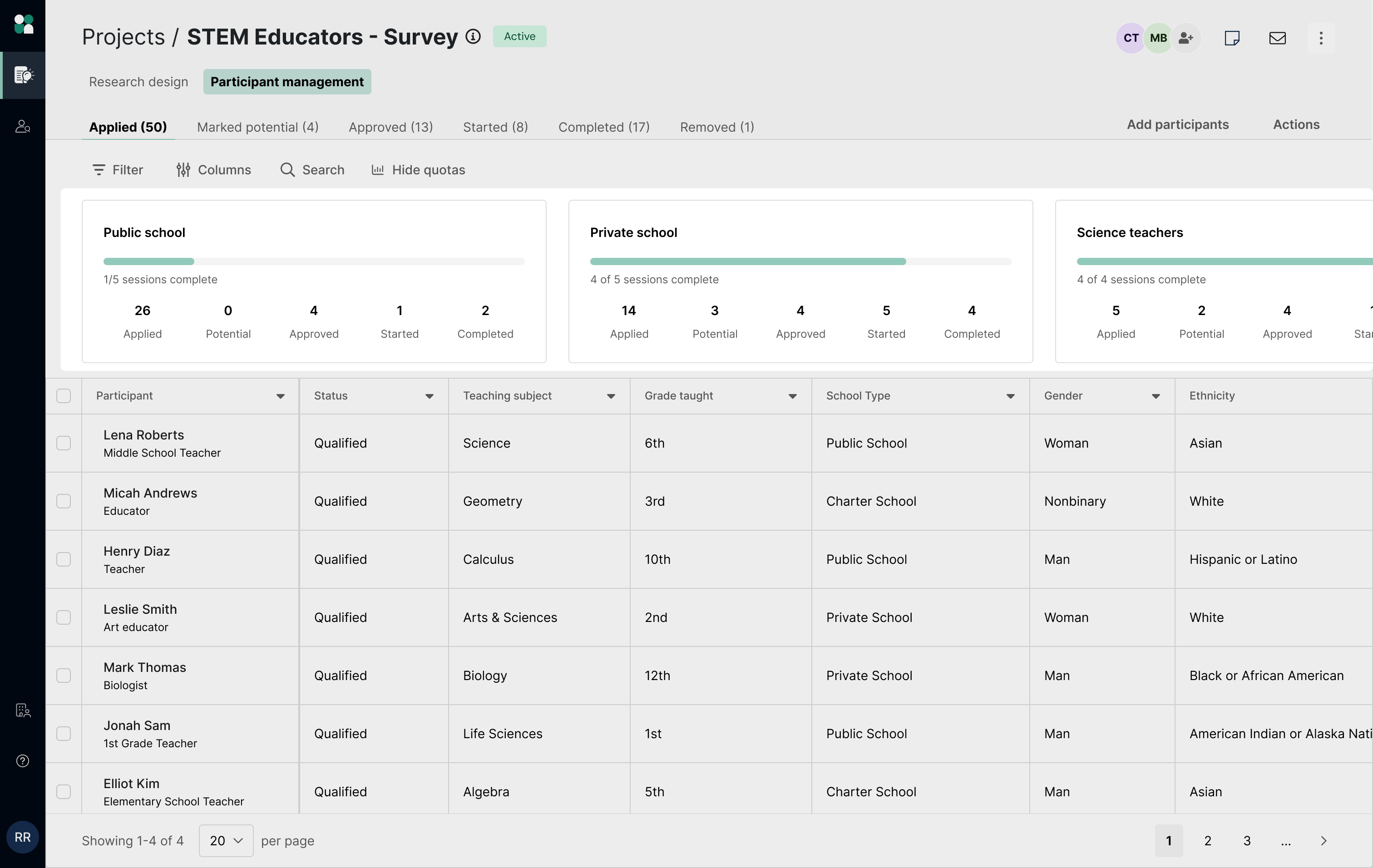
Once you’ve launched your study, you can see a visual breakdown of your quotas from the Participant management page. Participants are automatically categorized into your quotas in real time, making it easy to see how you’re progressing towards your targets.
If you decide to complete additional sessions beyond your quota target, the quota tracker will display the latest total number completed (6/5 sessions completed).
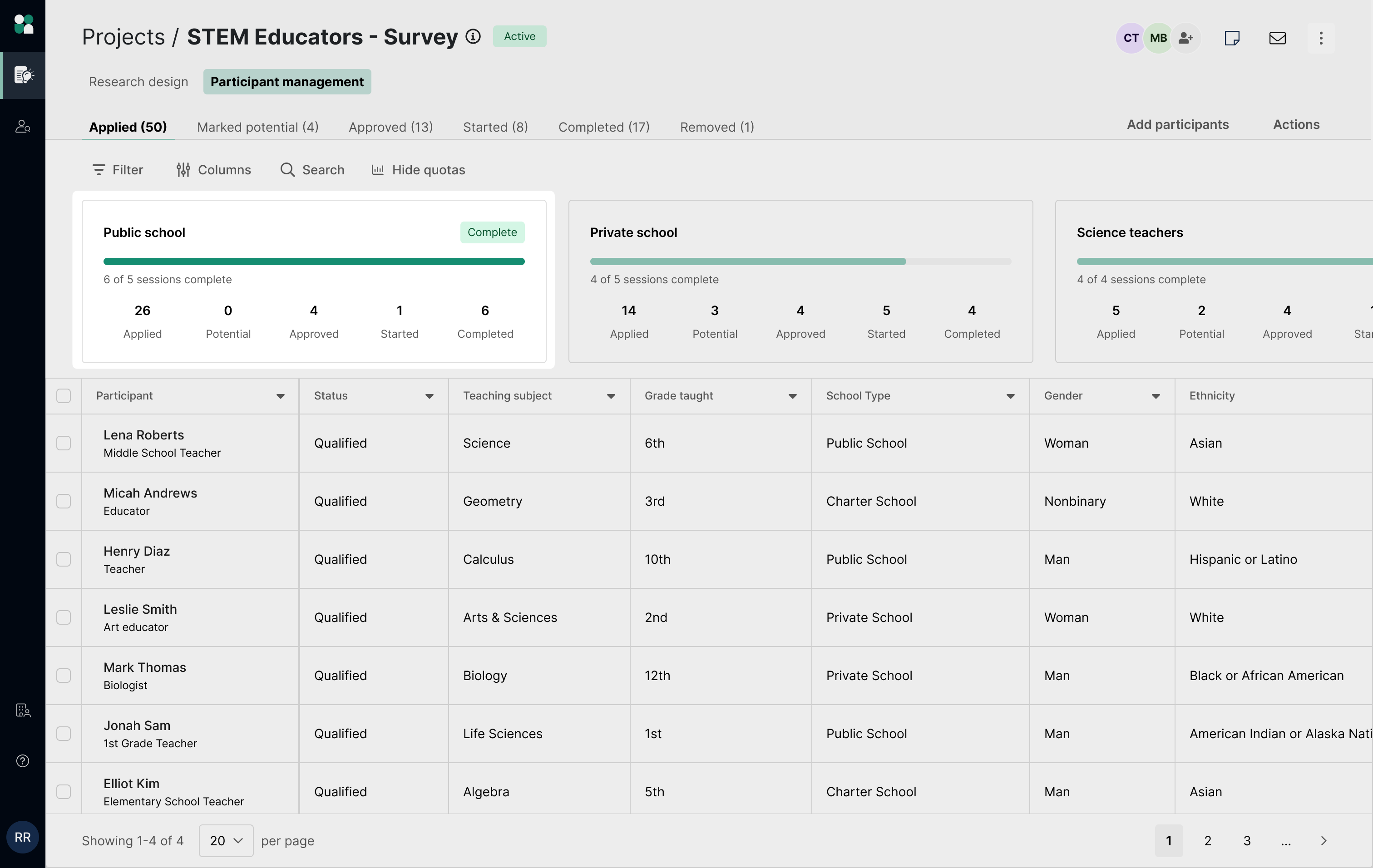
Filter participants by quota
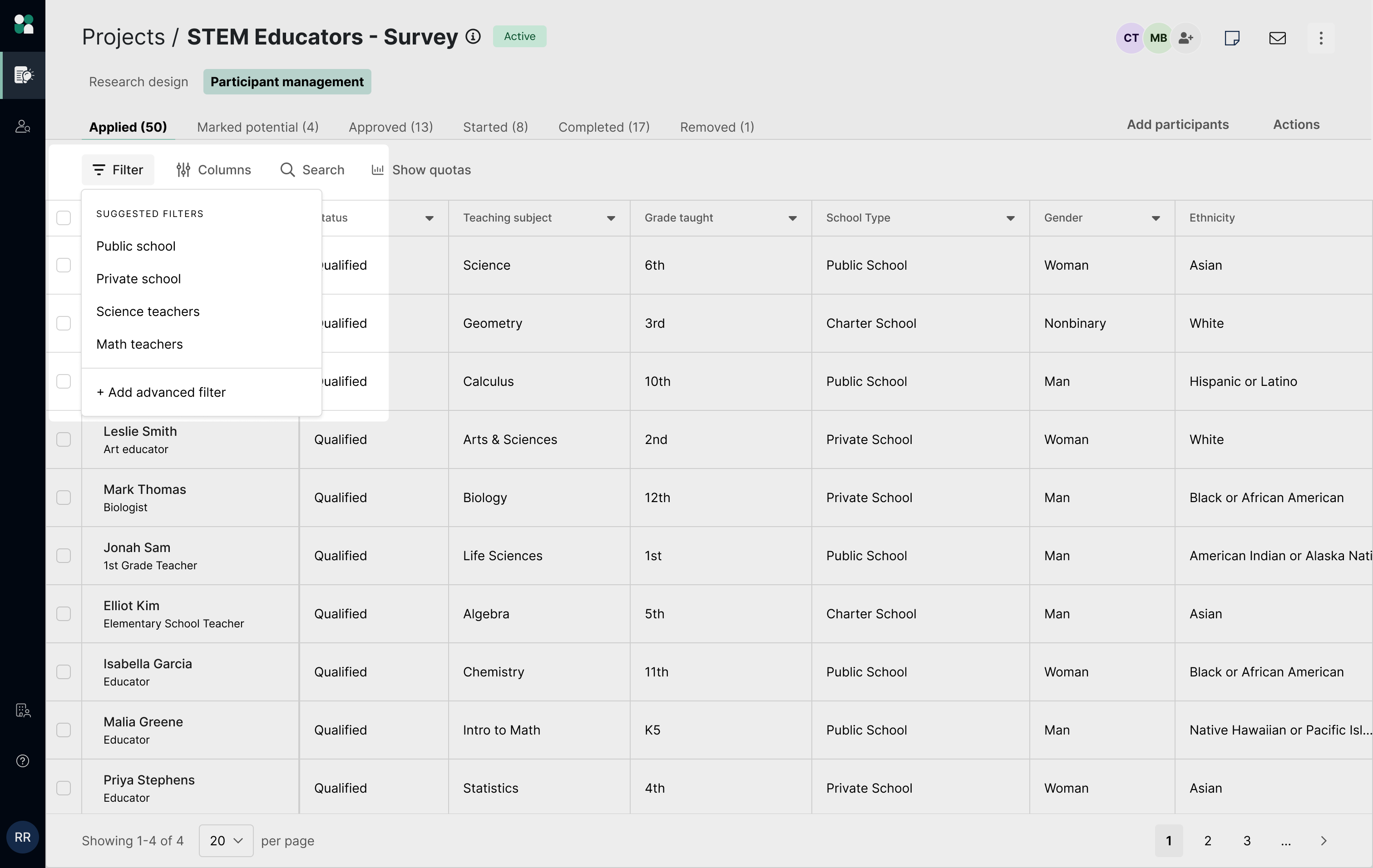
You can also filter by the quotas you’ve created to quickly find participants from that group. If you see that one quota is already filled but another is lagging behind, you can use these filters to approve more of the participants you need and maximize the pipeline for that quota.
How to set up quota automations
Quota tracking is helpful if you are manually approving and managing the recruitment pipeline, but you can also let the system enforce targets for you with quota automations.
Quota automations prevent participants matching any full quota from scheduling or starting the task. Instead, they’re added to a waitlist and notified if a spot opens up later. This helps teams easily scale up recruitment on large projects with less effort and manual oversight.
To enable quota automations, toggle on the “Prevent scheduling or task start when quota is full” option for that quota.

Once enabled, participants matching a quota that has been filled will not be able to schedule or start a task. They’ll be added to a waitlist and notified automatically if spots become available.

💡Availability: Quota automations are available for moderated projects (Recruit) and unmoderated projects with response time limit enabled (Hub & Recruit), to paid subscription teams.
FAQ
Can I use quotas on both Hub and Recruit projects?
- Yes, on Hub projects you can set quotas based on screener questions or project tags. On Recruit projects you can set quotas based on screener questions, project tags, or Recruit characteristics.
- Quota automations are available for moderated projects (Recruit) and unmoderated projects with response time limit enabled (Hub & Recruit) on paid subscription plans.
Will quotas impact invitation targeting on my Recruit project?
No. Quotas categorize and track participants based on your custom criteria. They do not impact invites sent for Recruit projects.
If you need recruitment support for your Recruit project, please reach out to us via Live Chat in-app or projects@userinterviews.com.
Can I edit my quotas or quota automations after a project is launched?
- Quota tracking: Yes, you can edit, delete, or duplicate a quota from the Actions menu, to the right of the quota.
- Quota automations: Yes, you can turn automations on or off after launching your project.
- If turning ON the setting mid-project, participants who have already scheduled or started the task will not be impacted. The system will start to gate scheduling/task start only for new participants who reach those stages.
- If turning OFF the setting mid-project, participants who were already waitlisted will not be impacted. The system will no longer gate scheduling/task start for new participants who reach those stages.
Can I override quota automations to allow a specific participant to join my study if they’re in a quota that’s already full?
Currently no, this setting cannot be manually overridden. However, you can turn the setting off or increase the quota target to allow more participants to schedule/start task.
Can participants be included in more than one quota?
- Yes, participants may meet criteria for multiple quotas, such as qualifying for a quota based on gender and another based on employment type.
- If quota automations are enabled: If any quota relevant to a participant is full, participants that qualify for multiple quotas will not be able to schedule/start task. You can think of quota automations as enforcing the maximum limit of participants per quota.
Can I set multiple quota targets that, when added together, exceed the requested participants for my study?
Yes. This supports scenarios where a participant might qualify for multiple quotas. For example, on a project with 10 requested participants, you might set the following quota targets:
- 50% (5) full-time employed
- 50% (5) part-time employed
- 50% (5) ages 40+
- 50% (5) ages 40 and under
Once I meet my quota target(s), can participants still apply?
Yes, participants will still be able to apply and participate in your study even after a quota is filled. If you notice one quota is lagging behind, you can filter by that quota and proactively approve more participants for that group.
We will be launching a setting that automatically prevents participants from scheduling or starting a task when a quota is full—coming soon!
Once I meet my quota target, can I still complete additional sessions with participants in that quota?
Yes. You can complete additional sessions beyond your original quota target if needed.
Can I set quotas based on any Recruit characteristic?
You can set quotas on any Recruit characteristic except for job title, industry, disabilities, and assistive technology.
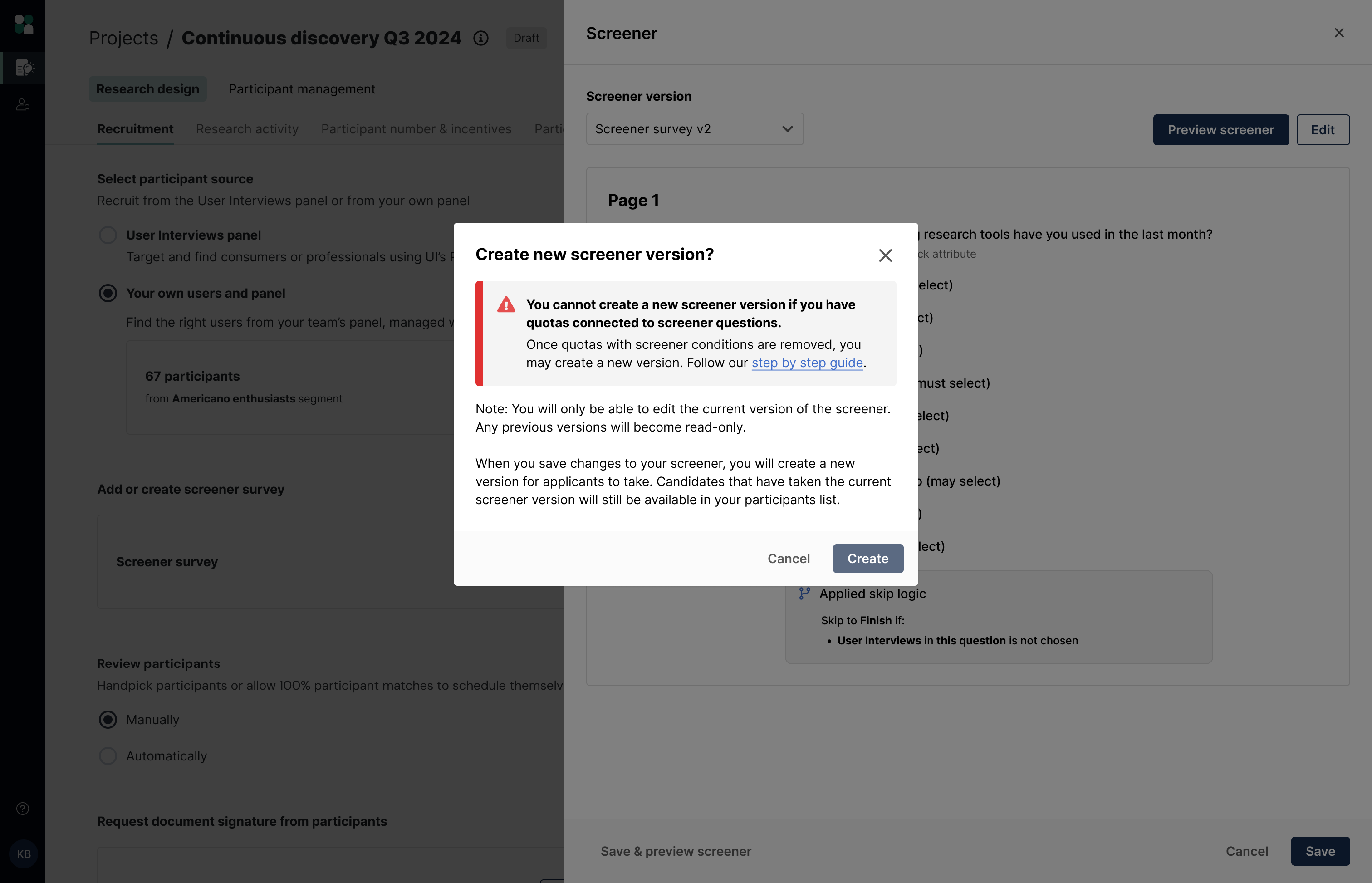
If I create a new screener version, will it affect my quotas?
Yes. If any of your quotas are based on screener questions, you won’t be able to create a new screener version until those quotas are removed. Once you delete the quota conditions tied to your screener questions, you’ll be able to create a new version of your screener.
Note that all candidates who completed the current version of your screener will remain in your participant list.