

Who is this article for?
🗣️ All researchers (branding customization is available to Owners and Admins)
⭐ Available with all Research Hub plans
You can customize your organization's branding by uploading a logo and creating custom email themes. These branding elements will appear on participant-facing materials like project application pages, opt-in forms, and invitation emails.
Upload your organization logo
Your organization logo appears on project application pages and opt-in forms. When you upload an organization logo, it becomes the default for all teams in your organization, unless a team has uploaded their own logo (team defaults always supersede organization defaults).
How to set a default organization logo
- From the global navigation, go to Organization settings
- Navigate to the Branding section
- Click in the logo area to upload your logo image
- Your logo will now appear as the default across all teams
💡 Note: Only Owners can upload or delete the organization logo. Teams can still upload their own logos, which will take precedence over the organization default.
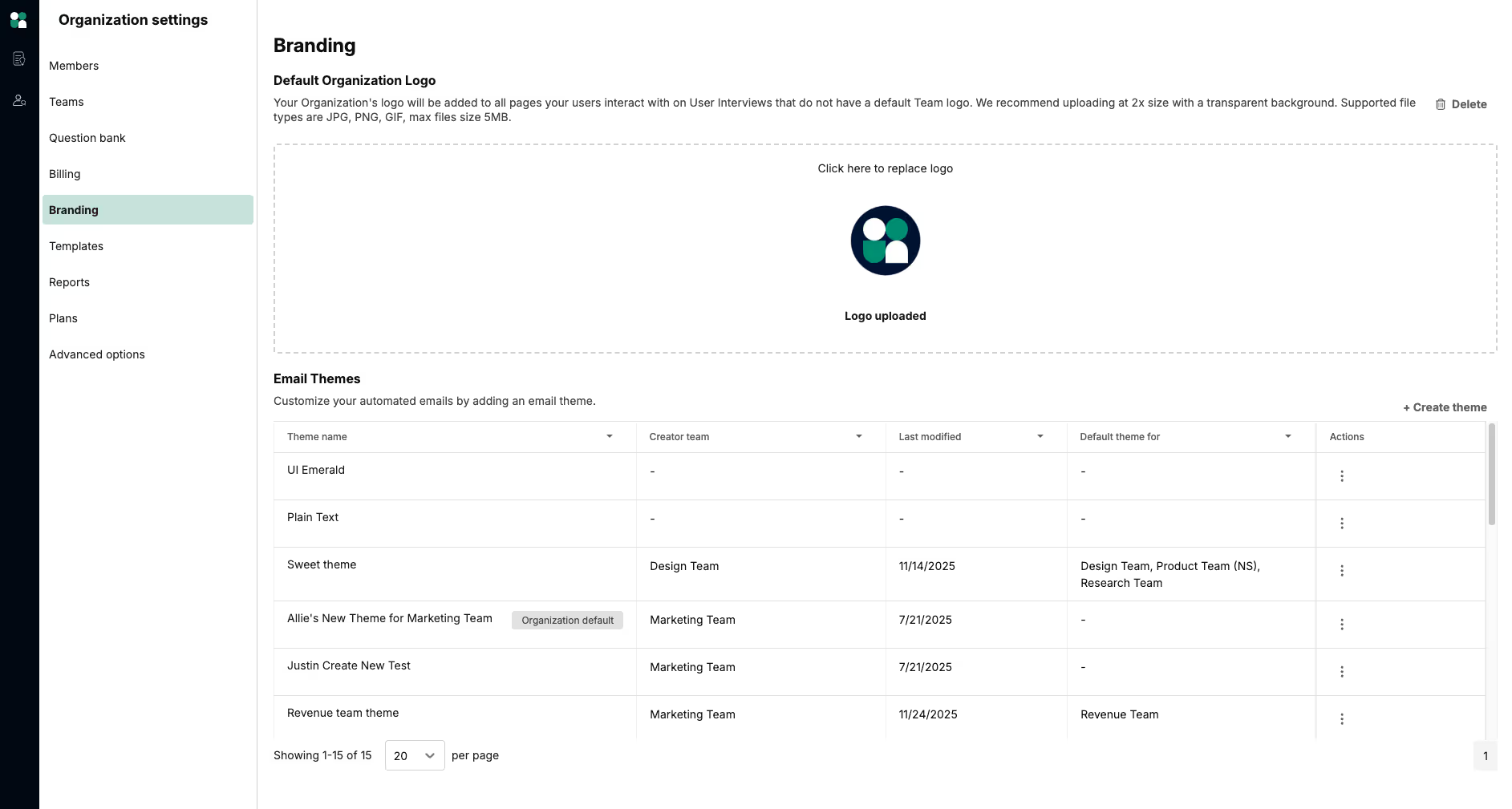
Logo defaults and team overrides
- Teams without their own logo will automatically use the organization logo
- Teams with their own logo will retain their custom logo, even after an organization logo is uploaded
- Teams can delete their own logo without affecting the organization default—they'll simply revert to using the organization logo
Create and manage email themes
Email themes let you customize the look and feel of invitation emails sent to participants. You can create themes at the organization level or for specific teams, and set organization or team level defaults that automatically apply to new projects and opt-in forms.
How to create a new email theme
- From the global navigation, go to Organization settings
- Navigate to the Email Themes table
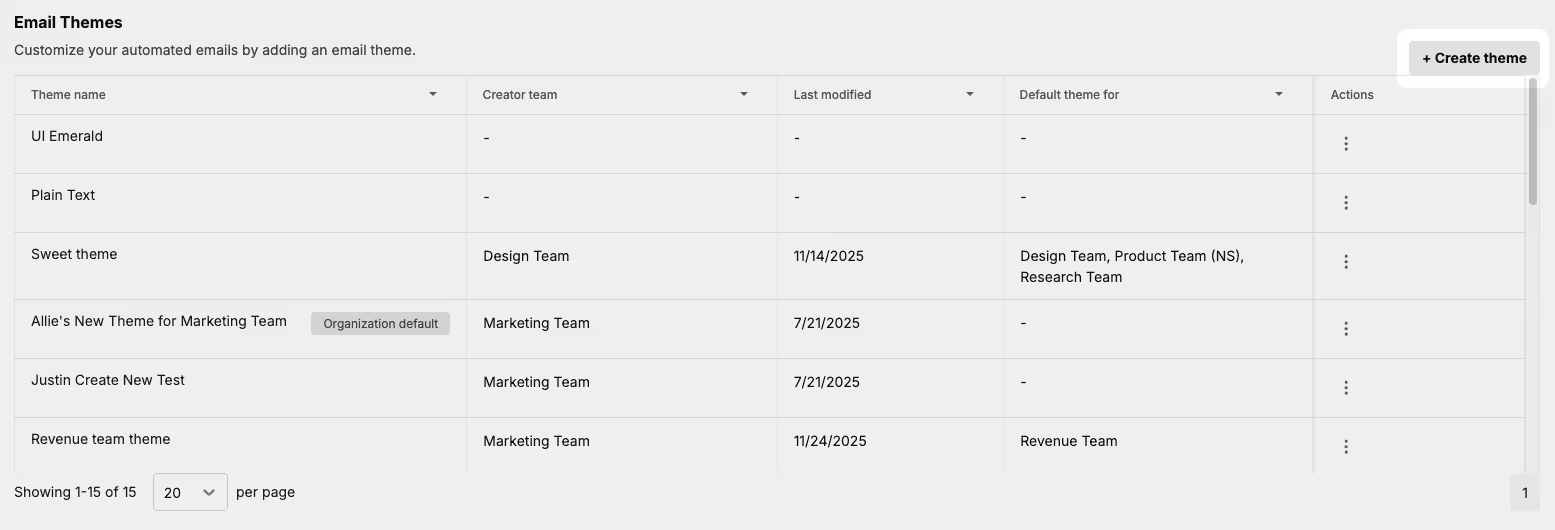
- Click the "+Create theme" button
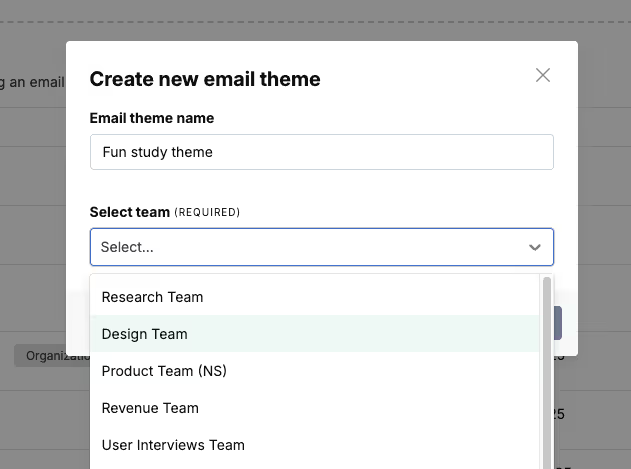
- For multi-team organizations: Name your theme and select an associated team
- For single-team organizations: You'll be taken directly to the theme editor
- Customize your email theme in the editor
- Save your theme
Your new theme will now appear in the Email Themes table.
Set default email themes
You can set email themes as defaults at two levels:
Organization default: Owners can set any theme as the organization-wide default. This theme will apply to all teams that don't have their own team default set.
To set an organization default:
- Find the theme in the Email Themes table
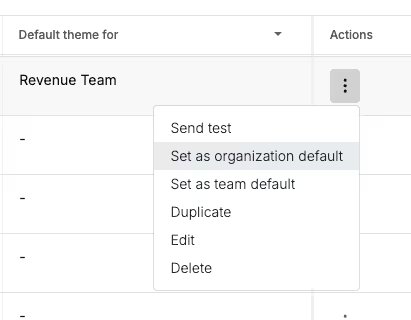
- Click the actions kebab menu (three dots)
- Select "Set as organization default"
💡 Note: Setting an organization default won't override existing team defaults—team defaults always take precedence.
Team default: Owners can set any theme as the default for a specific team. This theme will automatically apply to new projects and opt-in forms for that team.
To set a team default from the Branding page:
- Find the theme in the Email Themes table
- Click the actions menu (three dots)
- Select "Set as team default"
- Choose which team to apply it to
Admin (and Owner) roles can also set Team default email themes via the Team settings drawer by clicking on the team name on the Organization settings >> Teams page.
From the actions menu, Owners and Admins can also:
- Preview and send test emails to see how your theme looks
- Edit existing themes
- Duplicate a theme to create variations
Owner roles can take any action on any theme. Admin roles will only be able to edit themes for teams they belong to.
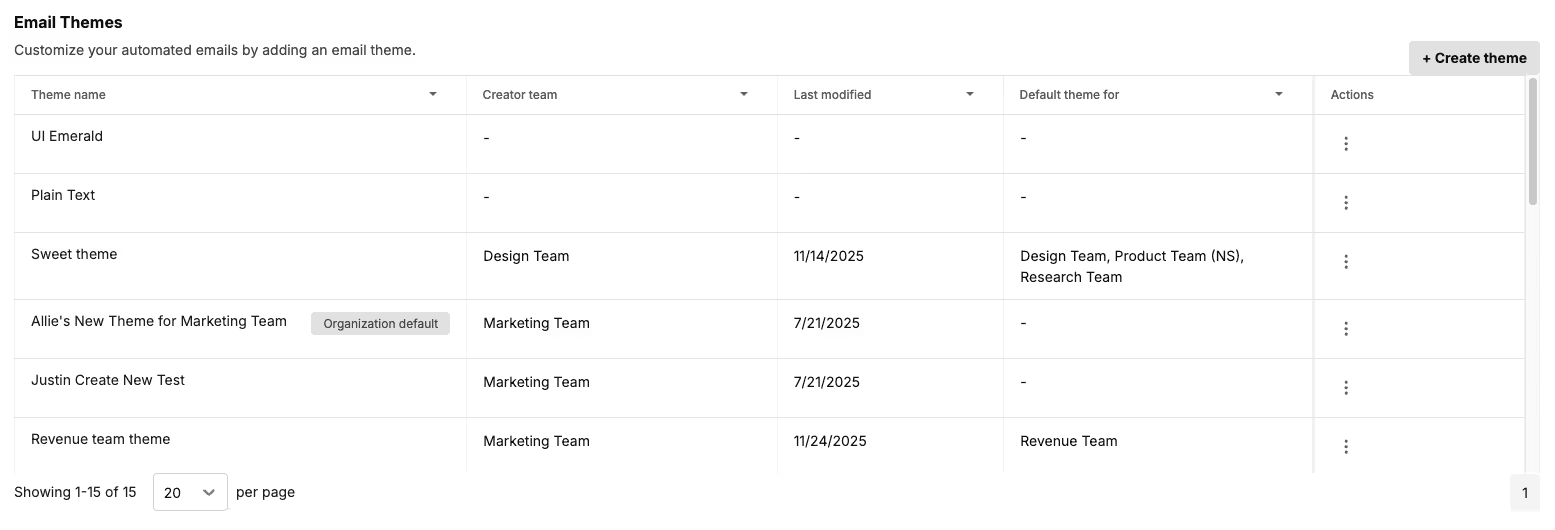
Understanding the Email Themes table
The table shows you key information about each theme:
- Theme name and preview
- Creator team: which team the theme is associated with
- Organization default: indicated by a badge if this is your org-wide default
- Team defaults: lists which teams use this as their default theme
How defaults work for participants
When participants receive invitations or view application pages, the system uses the following priority order:
- Team-specific settings first: If a team has its own logo or email theme default, those are used
- Organization defaults second: If the team doesn't have its own logo or theme, the organization defaults are used
- System defaults last: If neither team nor organization defaults exist, system defaults are used
This means you can set organization-wide branding while still allowing individual teams to customize their own participant experience when needed.
FAQ
Who can upload and manage the organization logo?
Only Owners can upload or delete the organization logo. Admins, Researchers, and Collaborators can view the logo but cannot make changes to it at the organization level.
Who can create and manage email themes?
Owners can:
- Create email themes for any team
- Edit and duplicate all themes
- Set themes as organization or team defaults
- Send test emails for any theme
Admins can:
- Create email themes for the organization
- Edit and duplicate themes for teams they belong to
- Send test emails for any theme
- Note: Admins cannot set team default themes via the Branding page, but can do so via the Team settings drawer (Organization settings > Teams > [Team name])
Researchers and Collaborators can:
- Preview and send test emails for any theme
What happens if I reach my Hub limit for email themes?
If you've reached your Hub plan limit, you won't be able to create new themes or duplicate existing ones until you upgrade your plan or delete some existing themes.
Can teams override organization branding?
Yes, teams can upload their own logos and set their own email theme defaults. Team-level settings always take precedence over organization defaults, giving teams flexibility to customize their participant experience when needed.
Will changing the organization default affect existing projects?
No. Setting a new organization or team default only affects newly created projects and opt-in forms going forward. Existing projects will continue using the theme that was active when they were created.