
Who can use this feature?
🗣️ All researchers (both admins and users)
⭐ Customers on our Research Hub CRM plan
Interested? Reach out to your CSM or request access to set up your Salesforce integration
Our Salesforce data integration allows you to pull customer data directly from Salesforce into your Hub panel. This ensures your participant data stays up to date and acts as a single source of truth when targeting and segmenting users in Hub.
Main use cases for this integration:
- Import Salesforce contacts into Hub: Bring your Salesforce contacts securely into your Hub panel to easily reach those customers or prospects for research.
- Update existing Hub contacts: Automatically update key participant data in Hub whenever that information is updated in Salesforce, to ensure your panel data stays fresh at all times.
Authenticating and configuring this integration in Research Hub requires no technical resources, so with some initial setup your team can quickly get up and running.
💡Interested? Please reach out to your CSM or request access to get started with integration set up
How to set up the integration
📚 Learn more on the UI Academy: Integrations with User Interviews
Salesforce connection & authentication
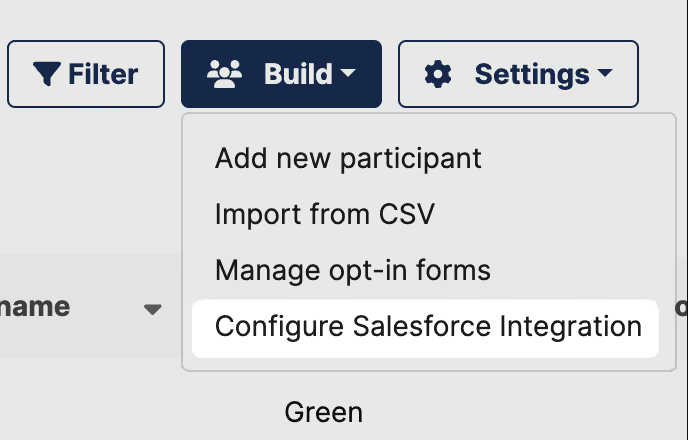
In Research Hub, navigate to the “Build” dropdown menu and select “Configure Salesforce integration”.
💡Note: If you haven’t requested access yet, please fill out the request form—our team will contact you shortly with next steps
In the Salesforce integration modal, click “Connect” in the upper right. Note: You will need Salesforce admin access in order to connect.
.avif)
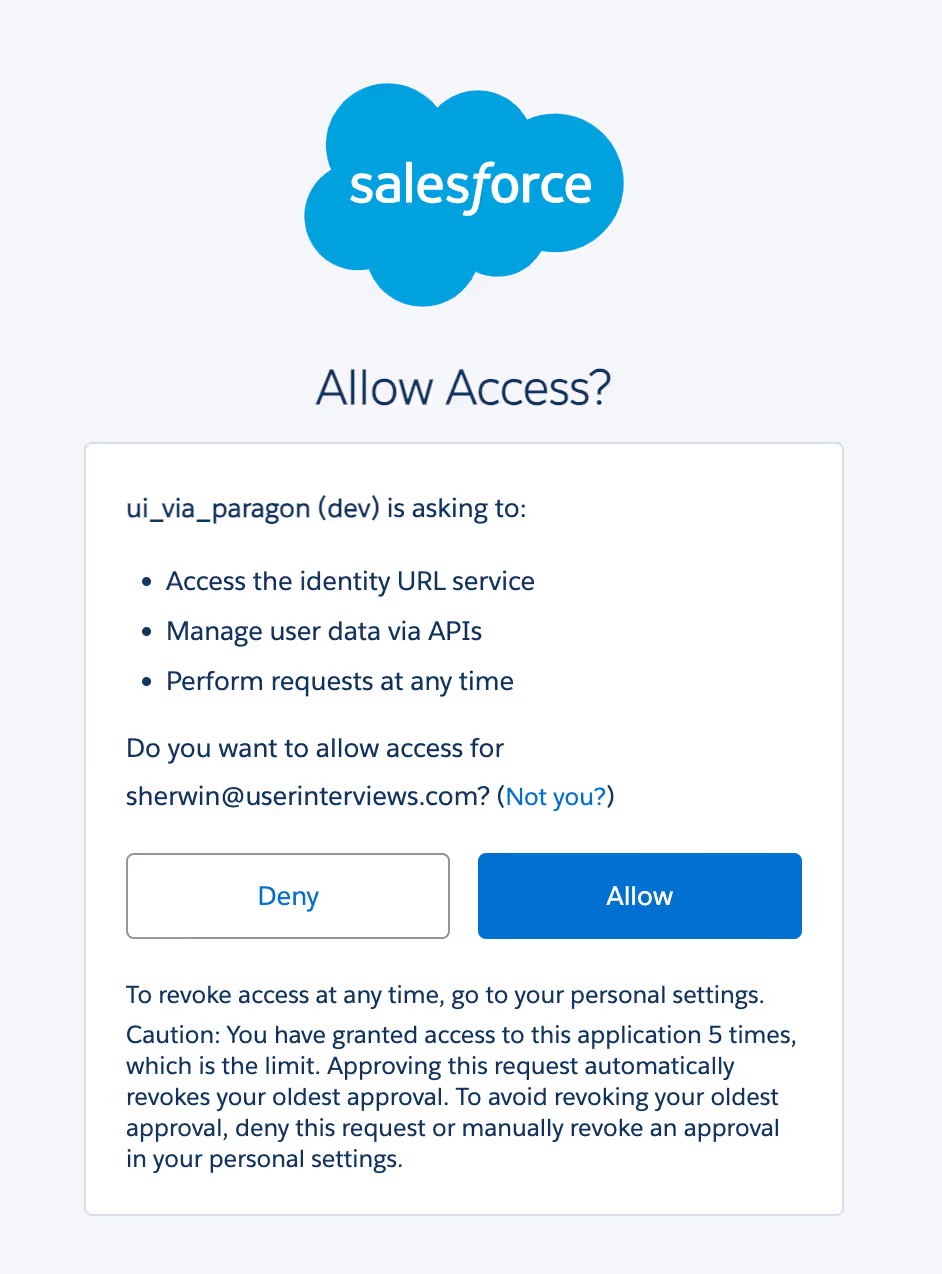
Log into your Salesforce account and allow access. Note: You will need Salesforce admin access in order to connect and grant access.
Field mapping
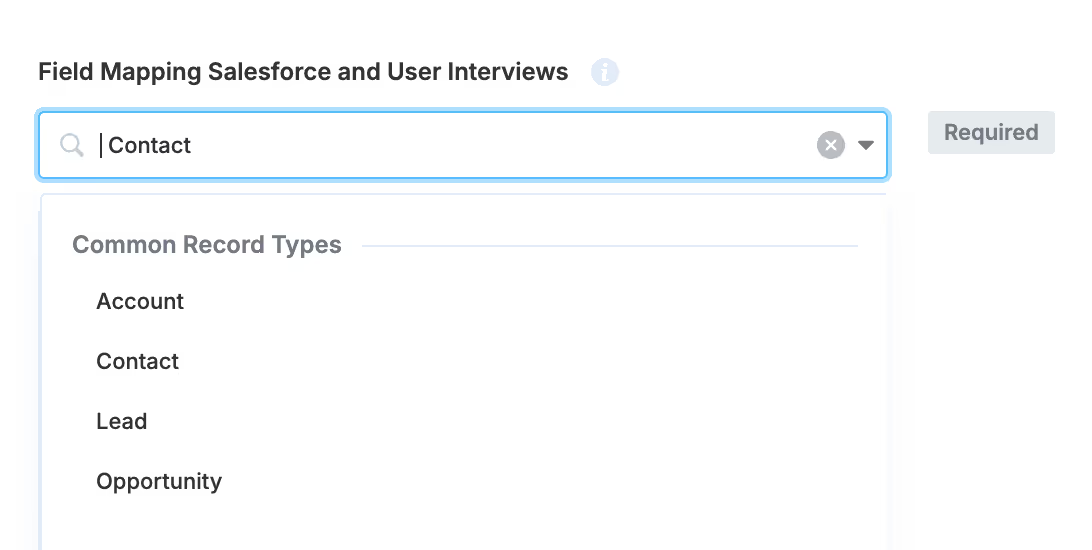
First, select the Salesforce record type you’d like to sync to User Interviews (e.g. Leads, Contacts, etc.). In this example, we’ll sync Contacts from Salesforce.
Now we can map the Salesforce fields to User Interviews. On the right hand side, you’ll see the custom fields defined in Research Hub. On the left hand side, you’ll see the available Salesforce fields we can map to Hub. In this case, we’ll choose to map the Title field.
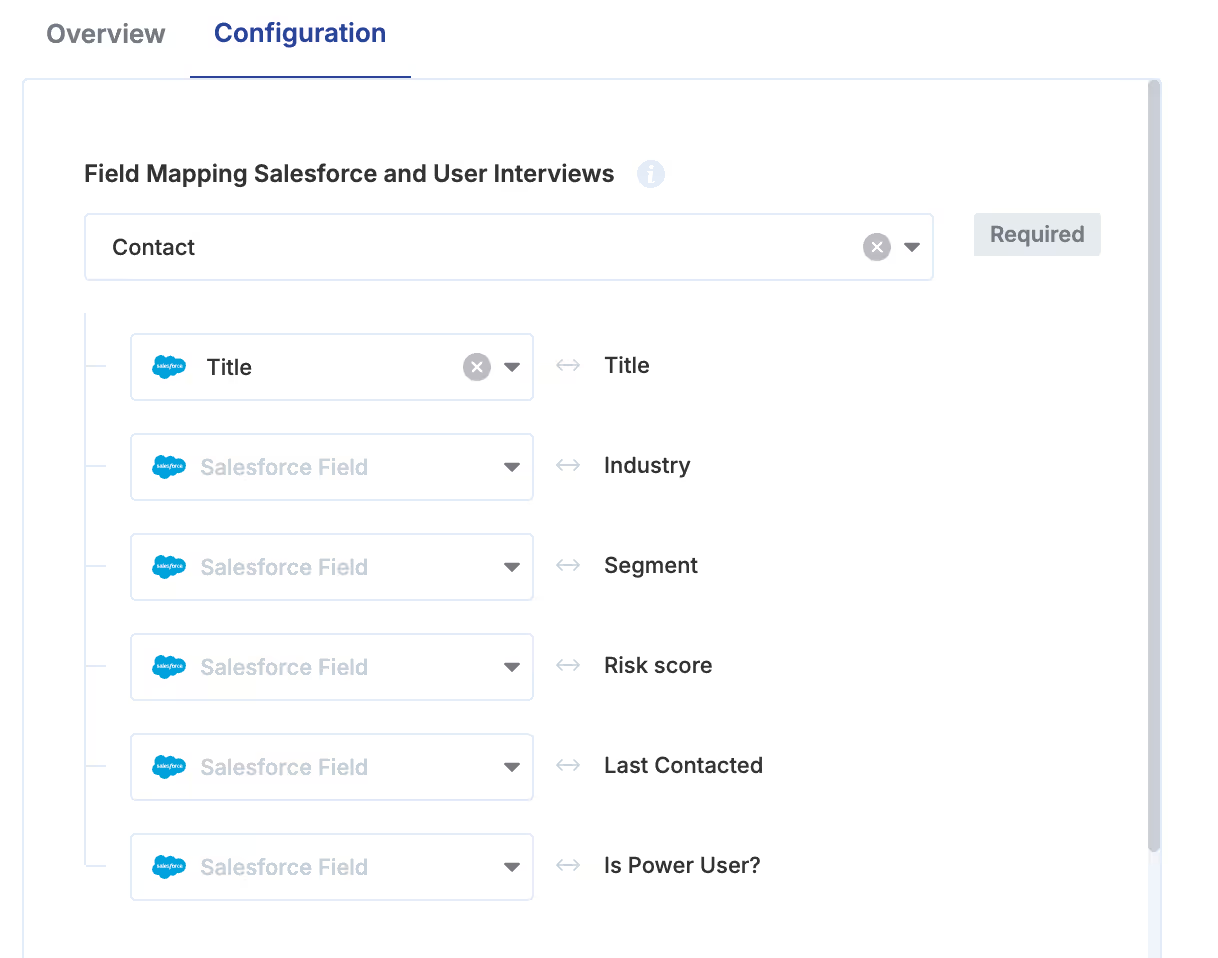
💡 Field mapping tips:
- Only map the Hub fields that you want to pull from Salesforce—you can leave the rest blank.
- For each field that you want to map from Salesforce, make sure there is a corresponding field in Research Hub with the same data type (string, numeric, boolean, etc.).
- Only existing fields in Research Hub will appear on the right hand side of this step. If you need to add a new field to Research Hub, you can do so via a .CSV import containing that field.
Option 1: Sync only select records from Salesforce
This option allows you to specify which Salesforce records you want to sync to User Interviews. If you want to only sync select contact records, select “Yes.”

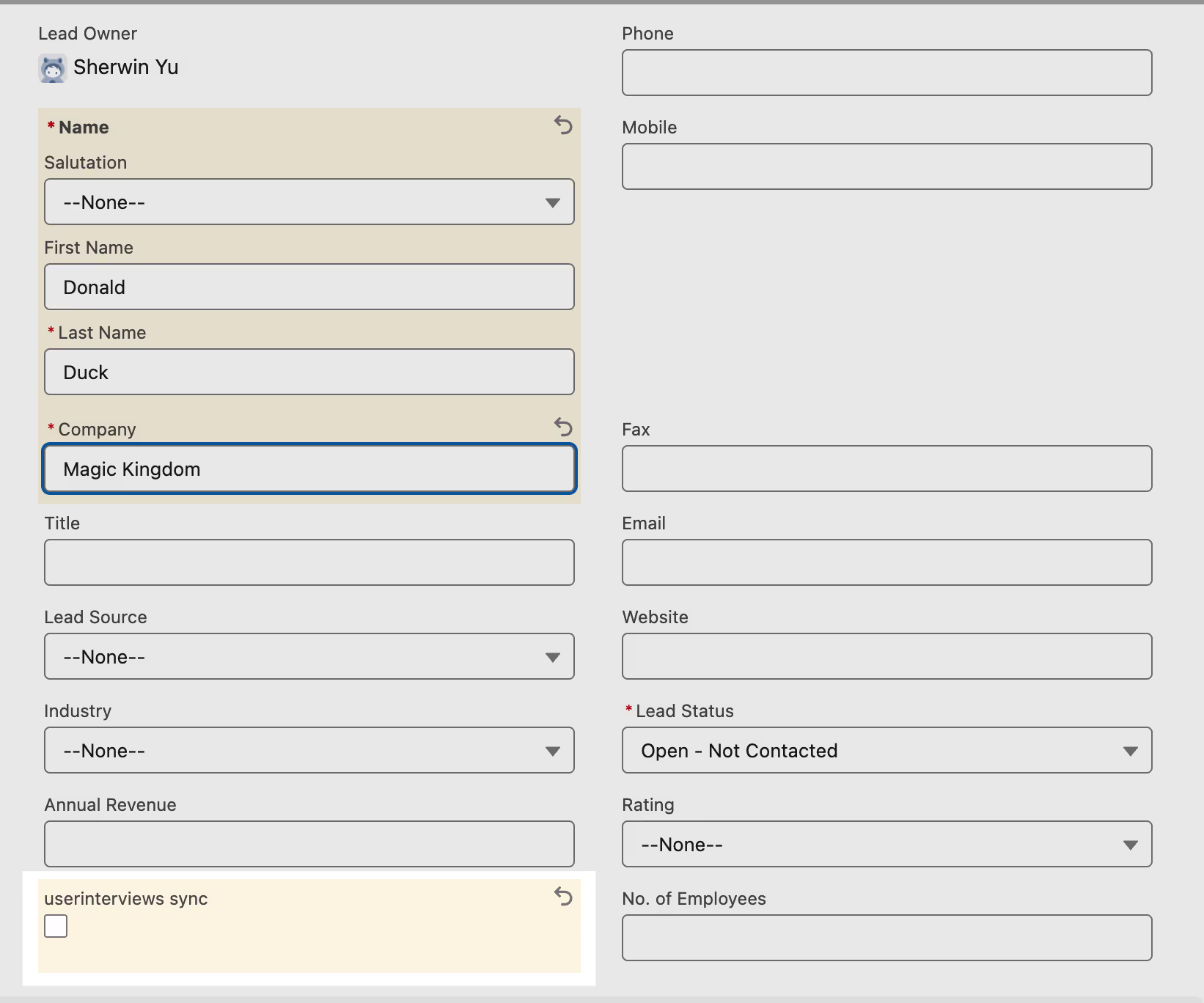
Create a custom boolean field in Salesforce (userinterviews_sync__c) and mark that checkbox as true for the records you want to sync.
1. In Salesforce, navigate to Setup > Object Manager > Contact > Fields & Relationships. Create a new Salesforce field.
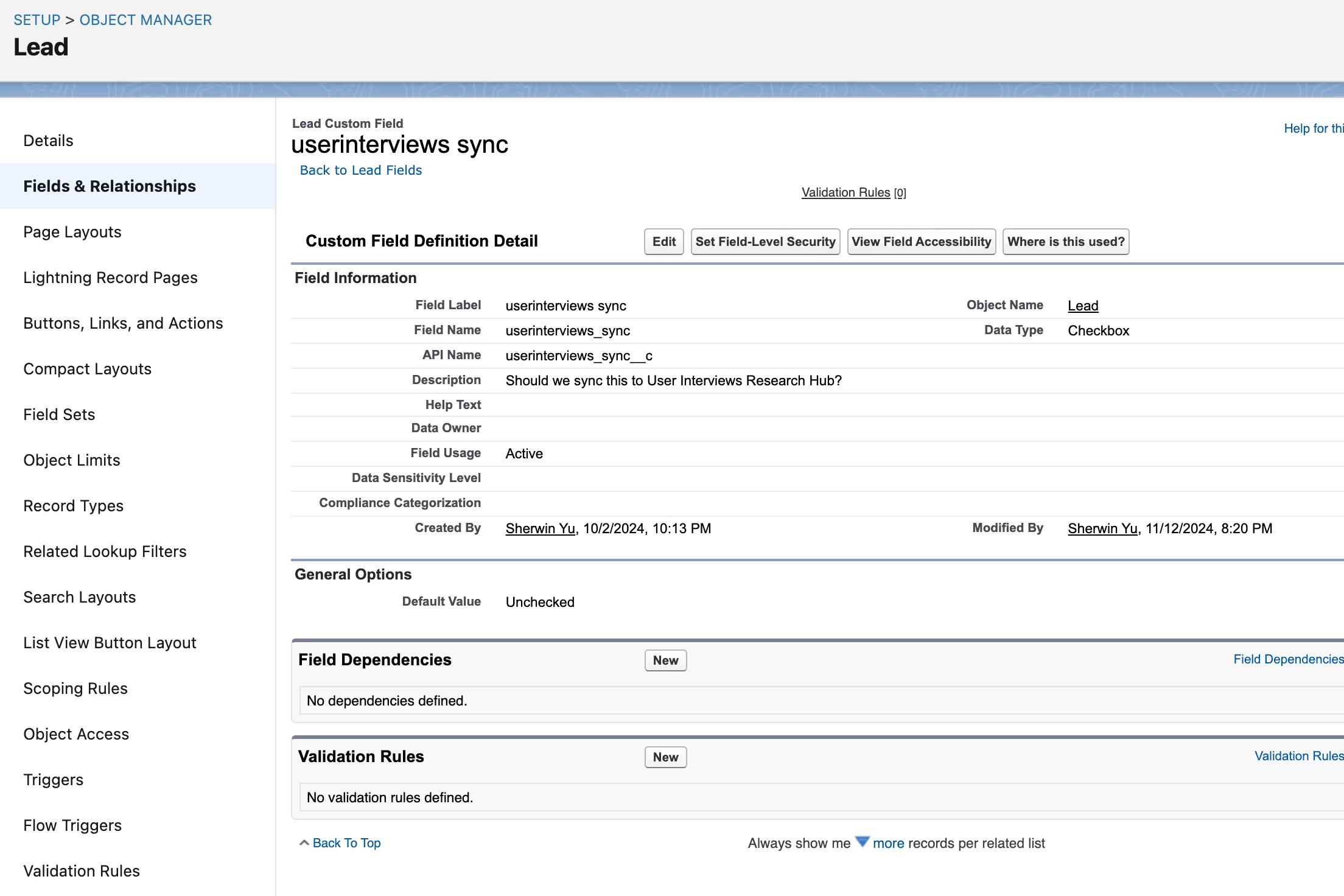
2. For the contact records you wish to sync, click Edit. Mark the userinterviews sync checkbox to enable syncing those records with User Interviews.
3. In User Interviews, ensure that “Yes” is selected for Sync only select records.

Enable manual Salesforce import (optional configuration)
To enable a manual bulk sync of Salesforce records, toggle on the “Enable manual bulk import” setting. This provides more control over sync timing.
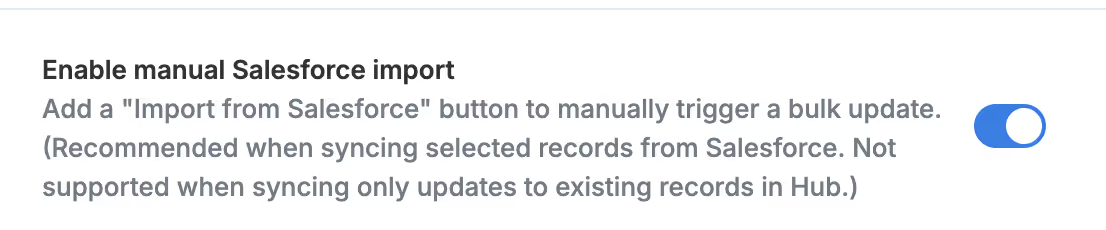
When enabled, this will add "Import from Salesforce" to the Build dropdown. Selecting this option will manually initiate a bulk sync of records from Salesforce. If “Sync only select records” is enabled, then only selected records in Salesforce will be synced.
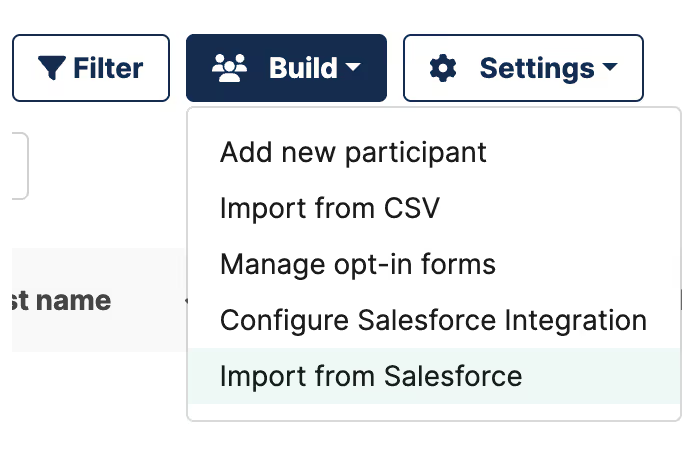
Note: This configuration is not supported for configurations with “Only update existing Hub contacts” enabled. When only updating existing Hub contacts, participant updates can only be received from Salesforce for individual participant updates.
Send Salesforce updates to User Interviews (optional configuration)
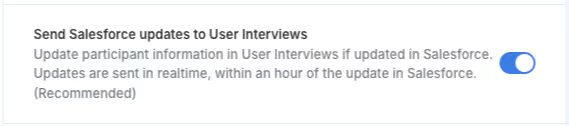
To automatically sync future updates from Salesforce to Research Hub, toggle on the “Send Salesforce updates to User Interviews” setting. Updates are sent in realtime, within an hour of the update in Salesforce.
✨ You can also use this configuration to support an opt-in flow for Salesforce contacts.
Once synced into Research Hub, you can share an opt-in form with your Salesforce contacts, and then remove any contacts who did not opt in for research.
- Create an opt-in panel in Hub that’s shared with your research team. Restrict access to the Entire Population so it’s shared with Admins only.
- Sync Salesforce contacts into the Entire Population.
- Create an opt-in form and link it to your opt-in panel.
- Share the opt-in form with your synced Salesforce contacts using the Hub bulk email feature.
- After some period of time, use filters to identify participants who did not complete the opt-in form and remove them from the population as needed.
Option 2: Sync only updates to existing Hub participants
When enabled, the integration will only sync updates to existing Hub participants from Salesforce.

Note: This setting takes updates from Salesforce and syncs them to existing Hub contacts. It does not automatically backfill new or existing Hub records unless an update occurs in Salesforce.
- We suggest temporarily using the “Sync only selected records from Salesforce” configuration and the userinterviews_sync__c boolean to run an initial data backfill for existing Hub participants. See the section above for detailed instructions.
- After that initial sync, switch to the “Sync only updates to existing Hub participants” setting.
- Moving forward, updates in Salesforce for any existing Hub participant will be synced.
- The integration will not backfill data on new participants unless a Salesforce update occurs.
Send Salesforce updates to User Interviews
To automatically sync updates from Salesforce to Research Hub, toggle on the “Send Salesforce updates to User Interviews” setting. Updates are sent in realtime, within an hour of the update in Salesforce.
.avif)
How to get access to the integration
If you’re interested, please reach out to your CSM or request access to the Salesforce integration. During this initial rollout, we’ll have a general onboarding process to get teams started smoothly:
- Orientation call: After receiving your request, we will schedule an orientation call to discuss your integration use case and answer any questions.
- Live configuration call: We will then schedule a second meeting to set up the configuration live with your team (this will require someone with Salesforce admin access to join the meeting)
- Setup is complete! Please let us know if you have any feedback on the integration.
FAQ
How does the integration work?
Our Salesforce data integration allows you to pull some or all customer data directly from Salesforce into User Interviews—no technical resources required. The integration will update records in User Interviews if they are updated in Salesforce, ensuring your Hub panel data always stays fresh. This is a one-way sync from Salesforce to User Interviews.
Who needs to be involved in the configuration process?
To connect Salesforce to your Research Hub, you will need access to your company Salesforce account. Depending on the permissions of your company Salesforce instance, you may need someone with Salesforce admin permissions for the configuration process.
Will my participant data be synced in real-time?
Updates are sent in realtime, within an hour of the update in Salesforce. You have two options for syncing data between Salesforce and User Interviews: you can choose to automatically sync Salesforce records, or manually bulk pull Salesforce records for more control.
My team wants to integrate with another tool—can I submit a request somewhere?
Yes! Please submit all integration requests via this form.