
Who can use this feature?
🗣️ All researchers (both admins and users)
⭐ On any User Interviews plan
The UserTesting + User Interviews integration makes it easy to recruit qualified participants in User Interviews and automatically route them into your UserTesting test. Together, the platforms streamline recruiting, testing, and participant management — so you can focus on insights instead of logistics.
After the recent acquisition, we’re actively working on a deeper, more seamless integration between UserTesting and User Interviews. Additional automation and workflow improvements are on the way.
How it works:
- Recruit and screen participants with User Interviews
- Build out your unmoderated task in UserTesting
- Link the two projects with a click & “Command+V”
- We’ll redirect participants and track completions for you!
📚 Learn more on the UI Academy: Integrations with User Interviews
Demo the UserTesting <> User Interviews integration
To see the UT<>UI integration in action, check out the walkthrough demo below.
What’s Automated vs. Manual
This integration streamlines recruiting and routing, but it is not fully hands-off. Successful completion still depends on manual status updates after the sessions are completed. Be sure your team has a clear owner for post-test reconciliation to avoid delays in incentives or reporting discrepancies.
Automated:
- Screener distribution
- Redirecting qualified participants into UT
- Status syncing during fieldwork
- Marking UI participants as “Submitted” after UT test completion
Manual (Required):
- Changing UI participant status from Submitted → Completed to release incentive payment
- Excluding participants in the correct order (UI → UT) if removing due to poor quality
If you have questions about setup or reconciliation, your Customer Success Manager can help walk through best practices before launch.
How to set up the UserTesting integration
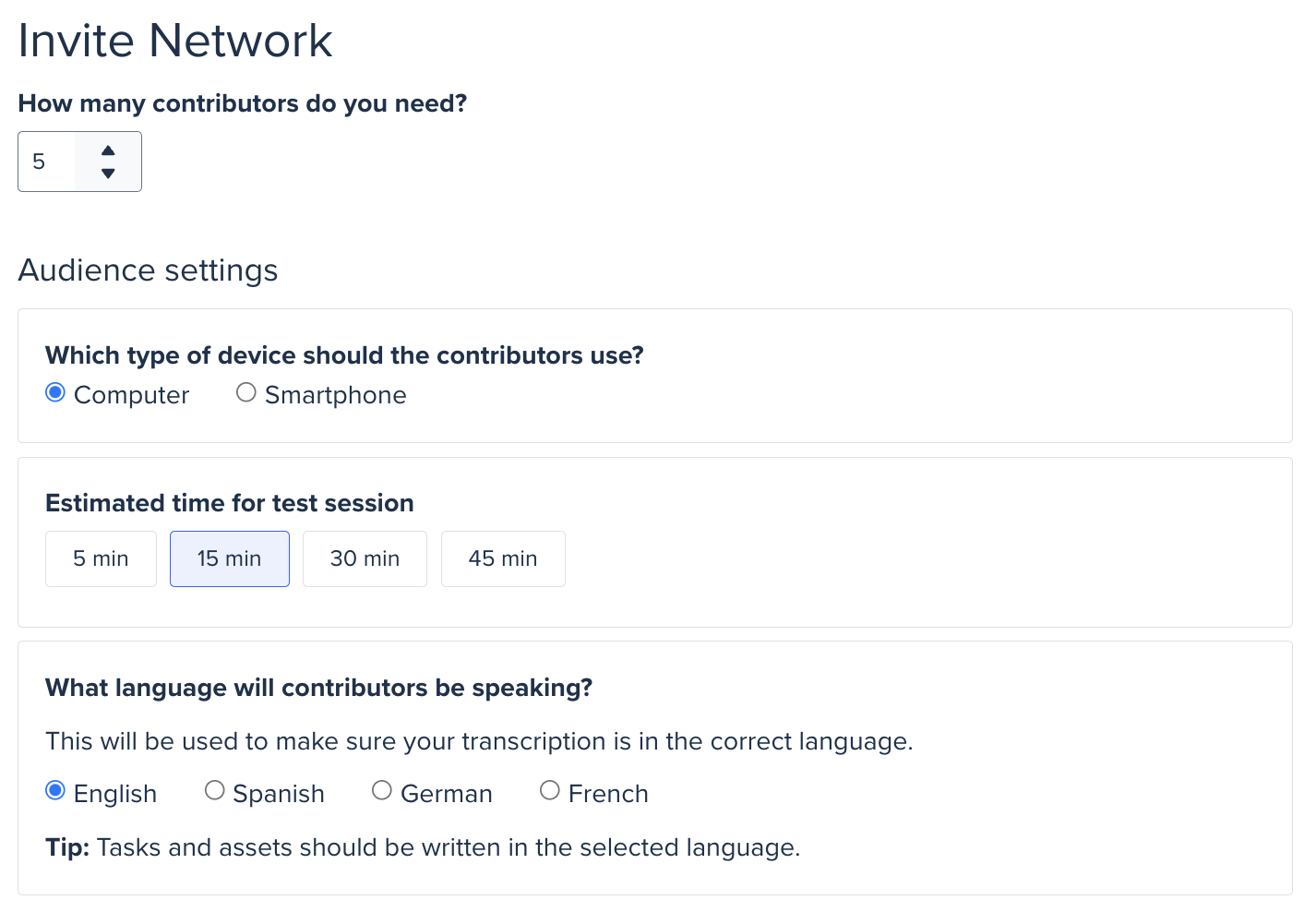
1. Build an Invite Network test in UserTesting.
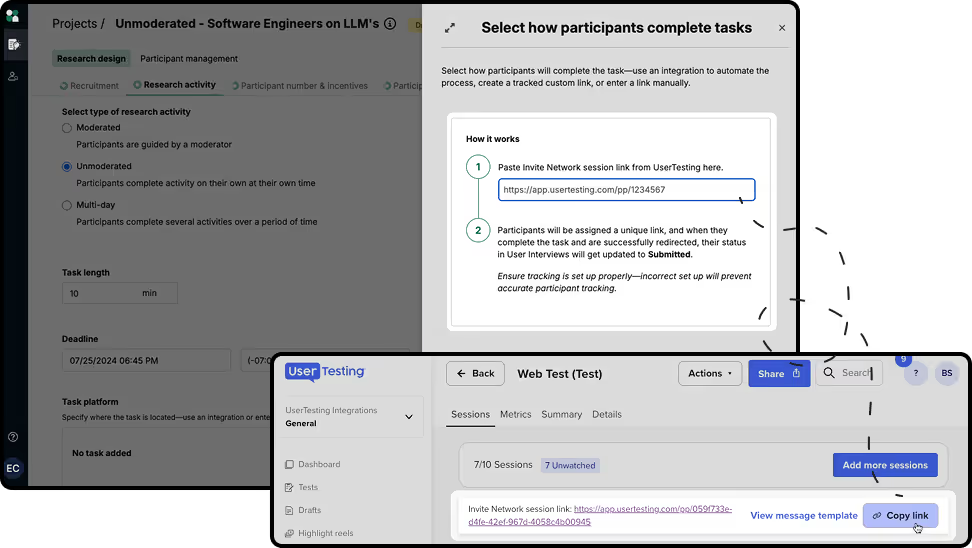
First, build your test in UserTesting as an Invite Network test. Once the test is created, copy the link.
2. Add the UT link to the Task platform section of User Interviews.
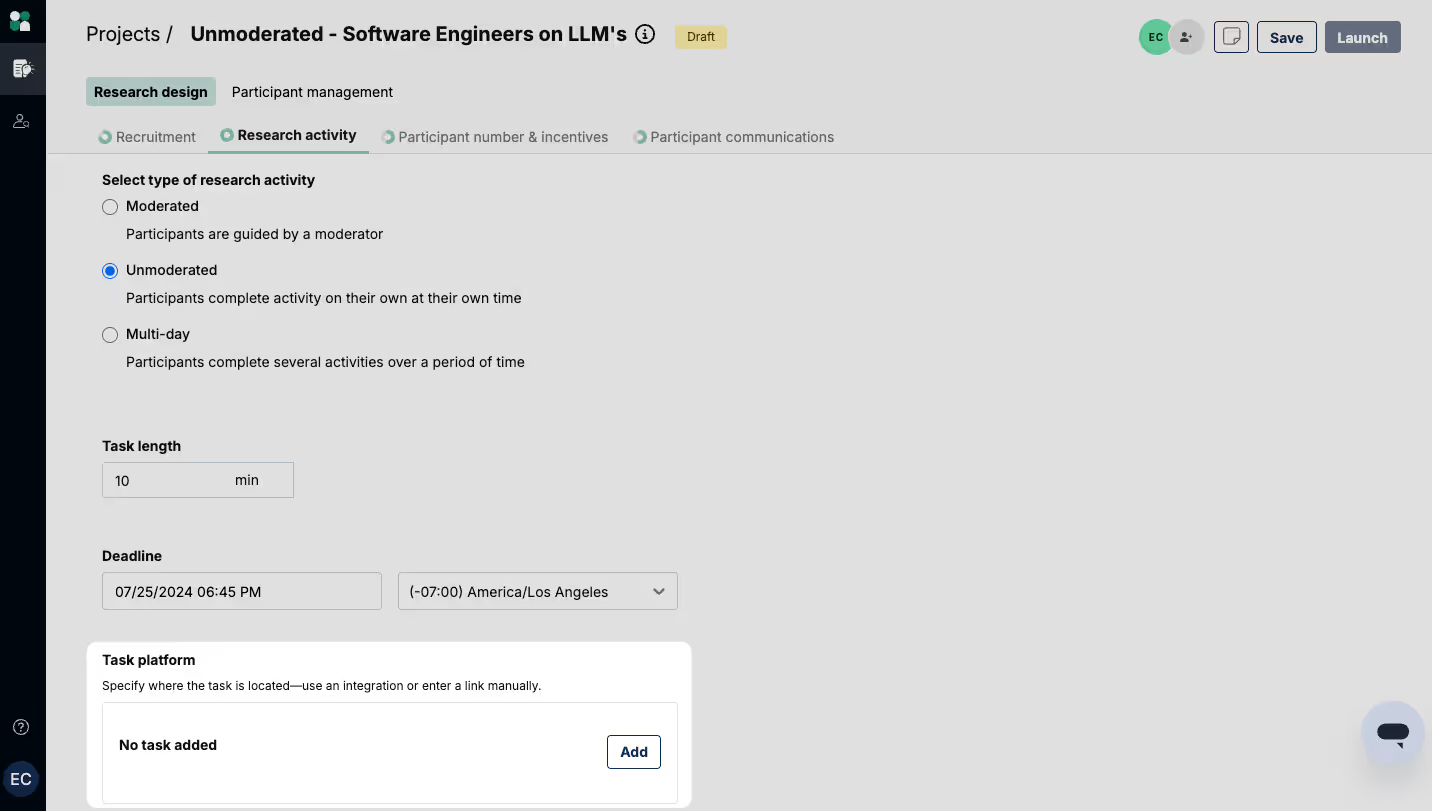
Head over to User Interviews and navigate to the “Research Activity” tab of your unmoderated project.
Click the "Add" button to specify where the task is located.
Select UserTesting as the task platform.
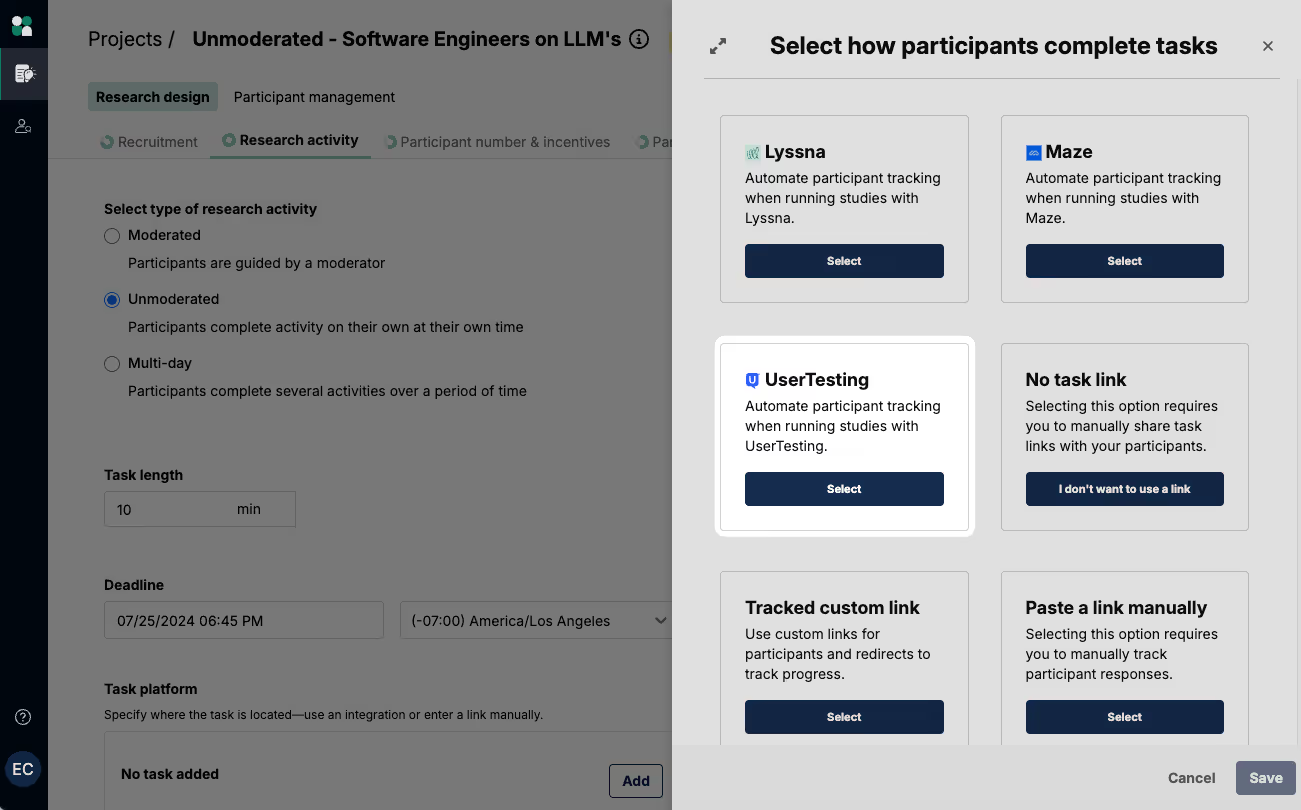
Follow the steps to paste your link into the field and connect the two tools. We’ll provide a step-by-step guide in-app to ensure your projects are successfully linked, participants will be redirected to the right place, and completions will be tracked automatically.
3. Preview and test the integration.
You can preview and test the experience to ensure that everything is working as expected. We generally recommend this step once you’ve already launched the project in your testing tool and the integration setup is mostly complete.
If you happen to make changes and want to re-test the experience, make sure to paste in the new study link in Step 1 before clicking the “Preview and Confirm set-up” button to test.
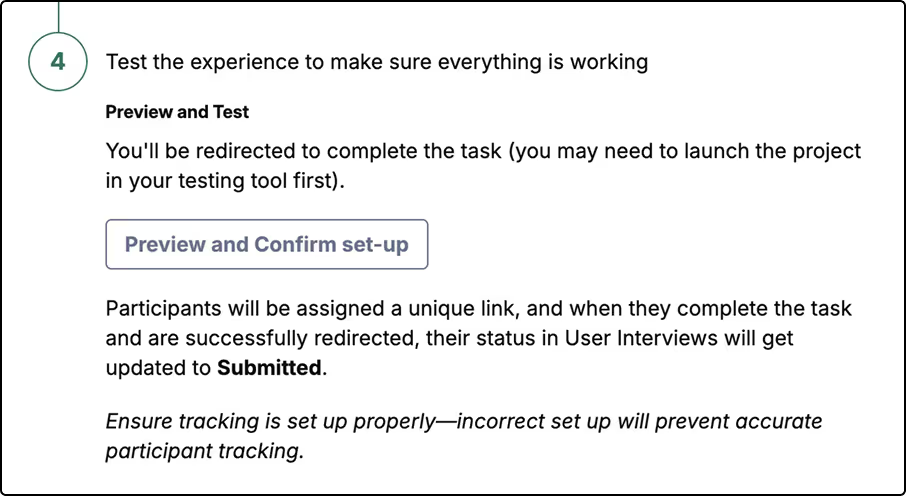
This integration uses unique custom links to track participation. For more details on how integration redirects work, see our support guide.
4. Launch your project.
When you launch the project in UI:
- Participants are automatically invited to complete your UI screener.
- Participants who pass the screener are automatically redirected into the UserTesting Invite Network test.
- There’s no need to manually send individual links or move participants between platforms.
As the test fills, UI and UT communicate in the background:
- Participant IDs are passed back and forth between platforms.
- Statuses update automatically (for example: screen out, qualified, incomplete, submitted).
- When a participant completes the UserTesting test, their status in UI is automatically updated to “Submitted.”
- In UserTesting, the same UI participant ID will appear as a complete.
You’ll see slightly different ID formats across platforms for UTZ tests (Surveys, Interaction Tests):
- UI format: pp_9exh736
- UT format: i9exh736
The IDs correspond to the same participant, just formatted slightly differently. In UI the IDs begin with ‘pp_’ and in UT they begin with the letter ‘i. Everything that follows is identical.
The ID format aligns 100% between UI and UT-C tests (TOL, Moderated): pp_9exh736
5. [Post-Test] Finalize participation statuses and distribute incentives.
While recruitment and routing are automated, finalizing participation and incentives is manual. These steps are critical for ensuring timely incentives distribution to your participants.
1. Triggering Incentive Payments (Required)
When a participant completes the UT test:
- Their status in UI will show as “Submitted.”
- To distribute the incentive payment, you must manually update their status from “Submitted” to “Completed” in User Interviews.
⚠️ If this step is not completed, incentive payment will not be triggered.
2. Excluding a Session (If Needed)
If you need to exclude a participant:
- First remove the participant in User Interviews.
- Then remove the participant in UserTesting.
Order matters—once the participant is removed from UT, the participant ID will no longer be visible there. Removing from UT first can make reconciliation more difficult.
3. ID Usage Limitation
The UI and UT participant IDs:
- Are used for tracking between systems
- Cannot be used for re-contacting participants
If you need to reconnect with a UI participant, do so directly through User Interviews using standard platform workflows.The IDs displayed through the UI/UT integration do not remain with the participant outside of the current test.
Note for participants: If you encounter an issue while completing your study, please use this contact form to get assistance from our support team.