

What are Hub Teams?
Teams are groups of Hub members with controlled access to panels, shared assets, and customized settings. By using Teams to organize and manage access to your Research Hub panel, you can set team-level customizations for features like:
- Branding
- Templates
- Screener libraries
- Documents
- Contact rules
- Data permissions
For example, you can create one team for your marketers who use Research Hub for high-level conceptual research—with their own set of branding (including branded opt-in forms!), templates, and other custom settings—and a different team for your UX researchers, who will likely want to use different customizations for their area of focus.
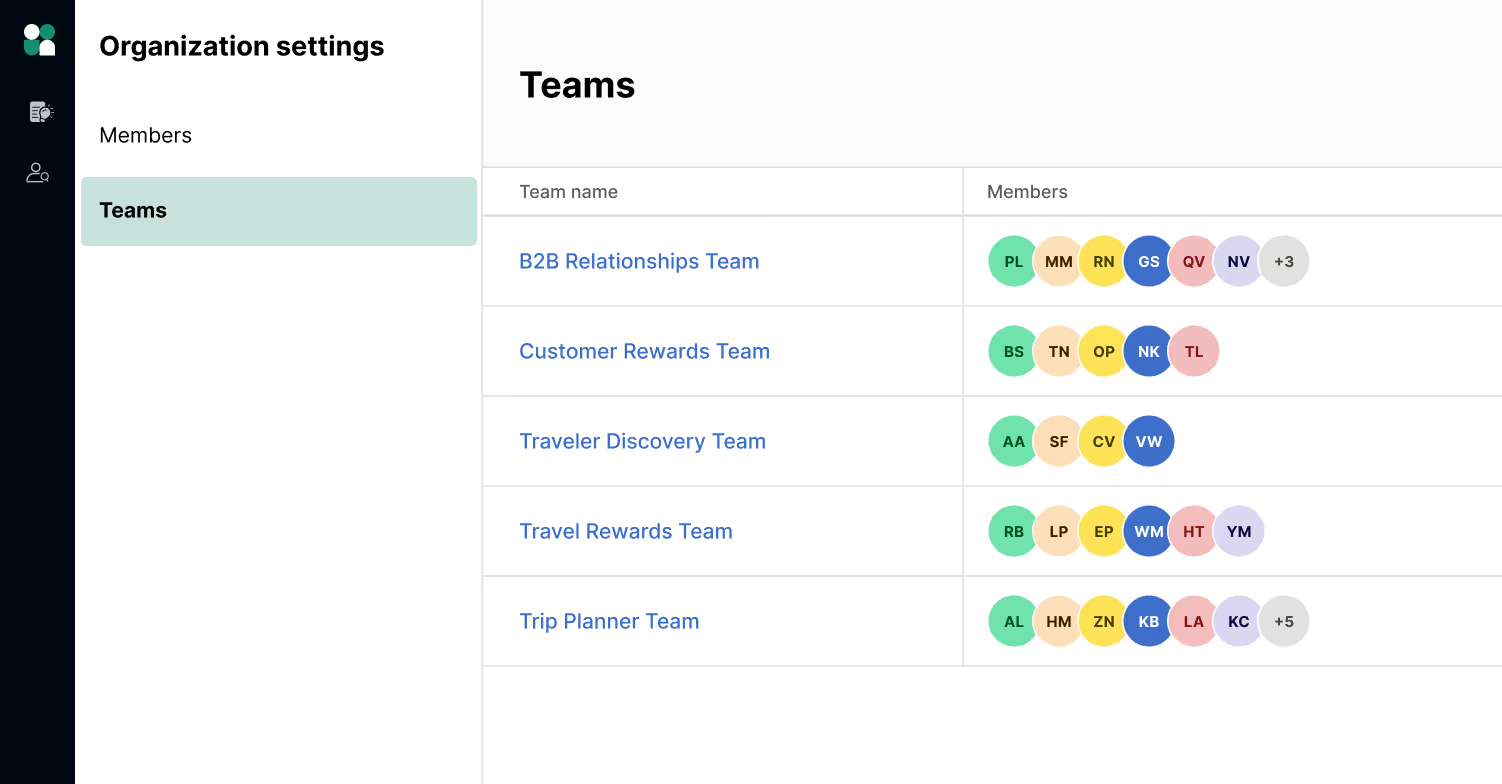
Owners (formerly Org Admins) can create teams, while Administrators (formerly Team Admins) have full edit rights to the teams they belong to. Members can belong to more than one team.
Note: Teams are available for Recruit Custom subscribers as well!
Why use teams, and how should I set them up?
By organizing users into teams, you can easily and flexibly govern panel access, share assets, and customize settings. Customizations can be set at a global level or team-by-team, providing flexibility for organizations with highly specialized research needs.
How you set up teams depends on your organization’s needs. Here are some top use cases we’ve seen among customers:
- Controlled panel access: Now that teams can have unlimited panels across their organization, you can group your users in Teams to easily give users access to only the Panels they need. Learn more about unlimited panels here.
- Researcher onboarding: Admins can quickly onboard new users with the right guardrails in place, and everything they need to confidently launch a study, access curated panels, and safeguard the participant experience, on day one.
- Budget management:
- For Hub customers, teams who use prepaid budgets can share the budget with the entire team(s) at once and use it to manage spend for that period. To allocate a specific amount to a group: Add members to a team, then adjust access to the balance via your avatar > Account settings > Prepaid balances > Balance ID > Share with teammates.
- Recruit customers can track and manage session and incentives balances across their teams, so you know whether to reallocate or refresh your subscription package. To check team research activity and spend status, go to your Organization settings > Reports.
- Department-level reporting: By grouping users by their department or cost center, it’s easy to track which teams and running which projects. This is also an easy way to manage multiple research budgets when your funding doesn’t all come from one department.
How to create Teams in Hub
If you’re an Owner on a Recruit Custom and/or Hub subscription, you’ll have the ability to create Teams. You can check your current plan under Organization settings > Plans.
Creating a Team
1. Head to the Organization settings section of the UI platform, then click on the Teams tab.
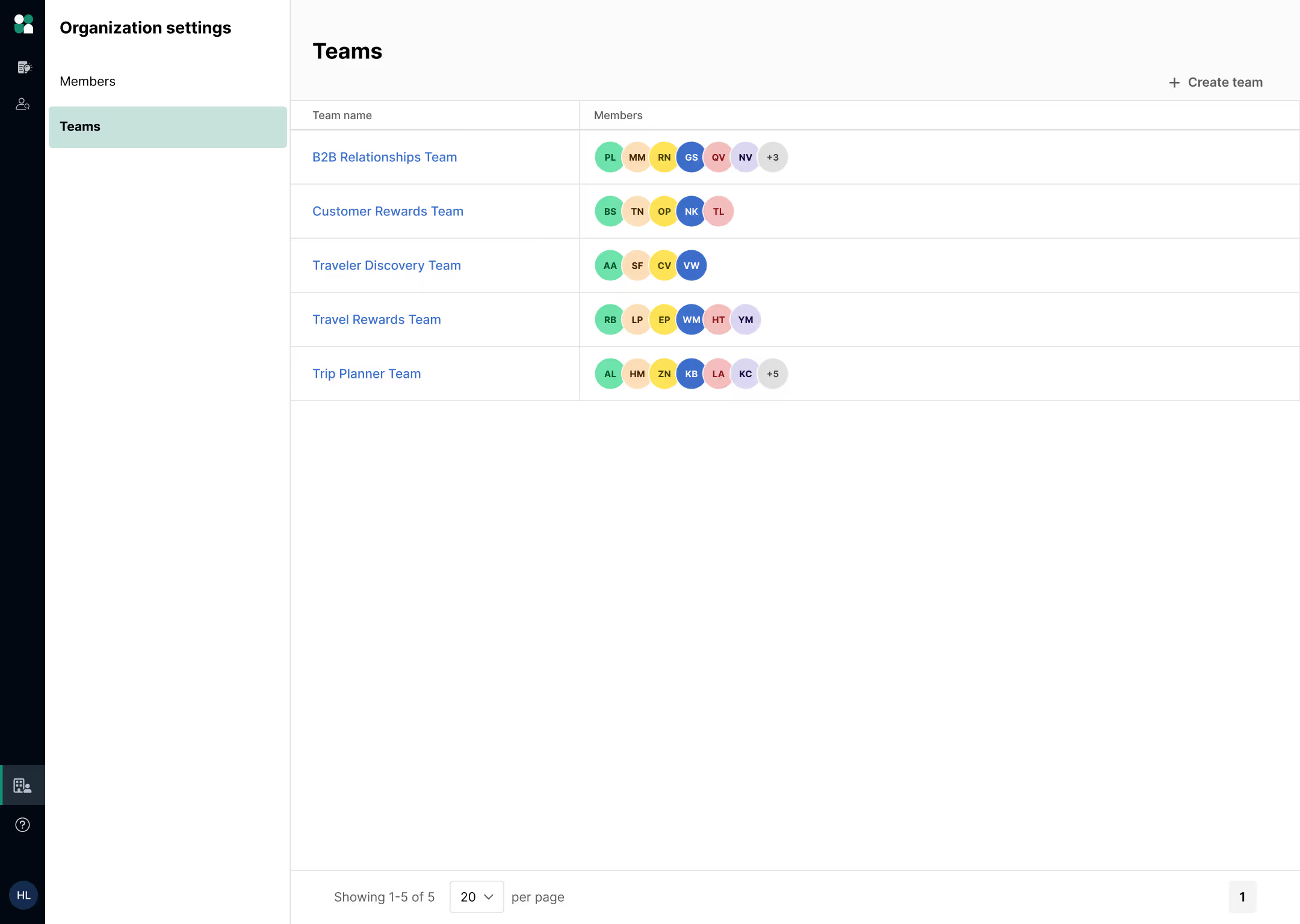
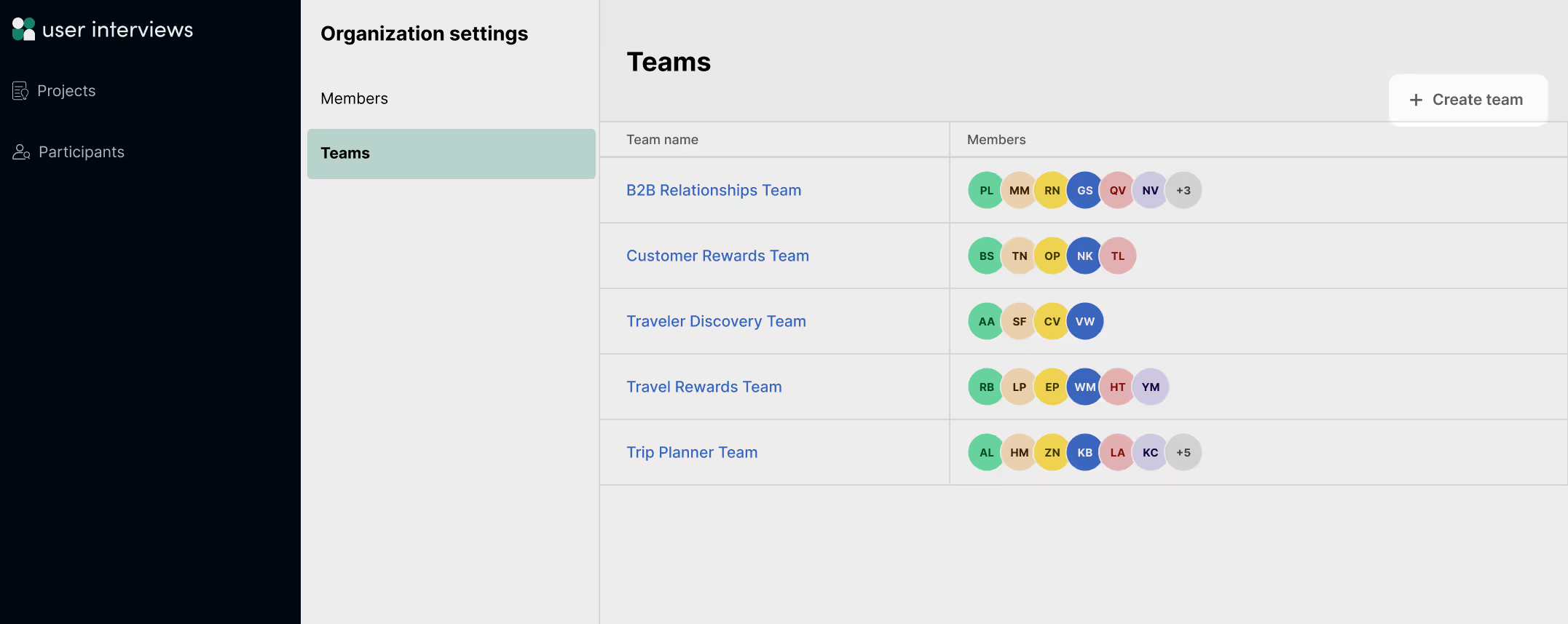
2. Click on the “Create team” button to build a new team (note that only Owner roles on a Recruit Custom and/or Hub CRM subscription will see this button).
You’ll see a modal to enter the following details:
- Team name: Provide the name you want for this team (this can be edited later)
- Subscription: Provide details on which subscription to map this team to, and how you want to split your Recruit session balance for this team
- Enabling account: Provide the email address for a trusted Admin or Owner user who does not already own a User Interviews subscription. Your organization's primary subscription owner will remain the subscription point of contact.
- Plan type: Select whether you would like this team to use Hub, Recruit, or both products
3. Click Submit to create your team
⛳ Note: Clicking submit will send a request to your CSM, who will ensure everything is properly set up with the subscription before getting the team created.
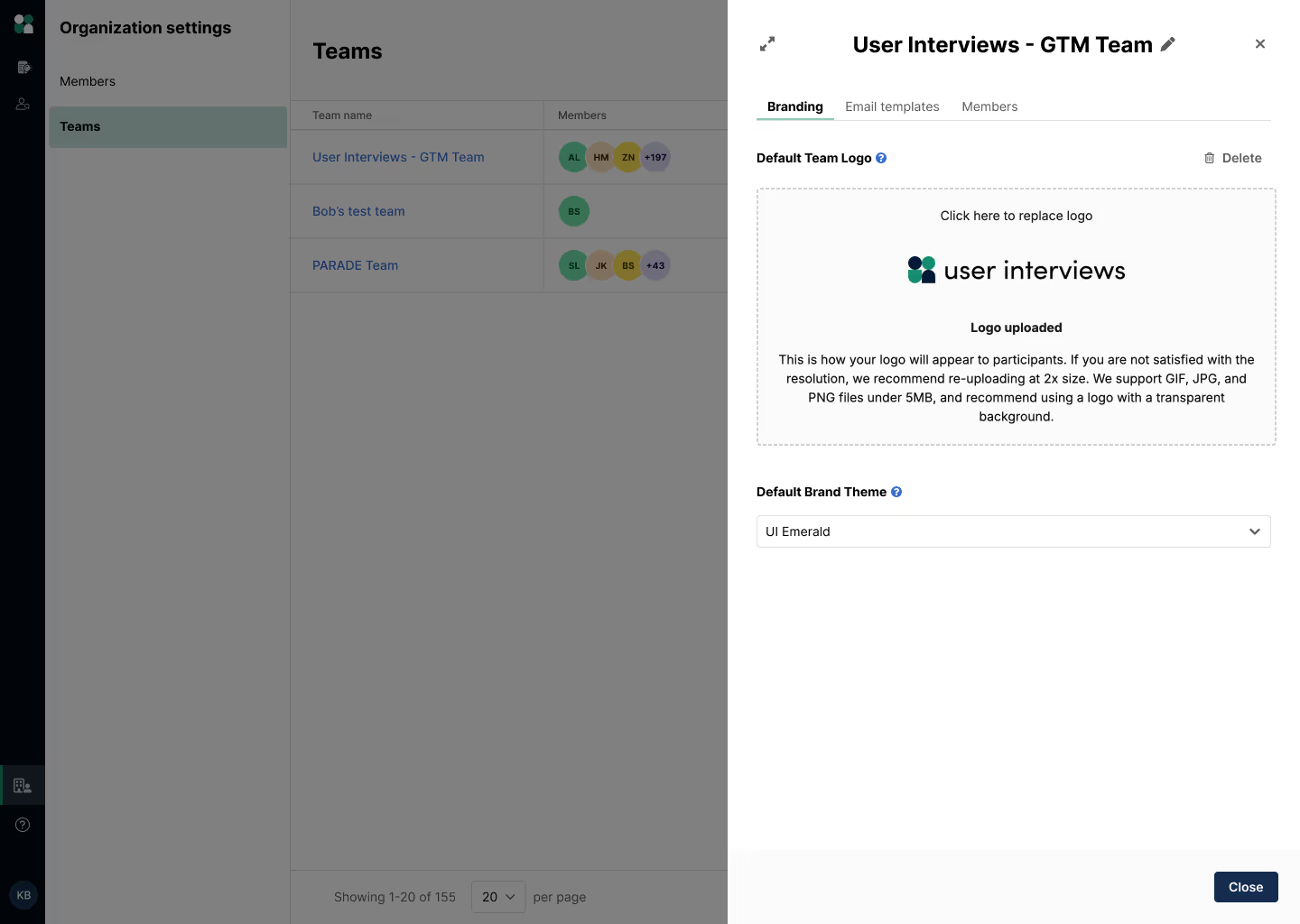
4. Once your team is created, you can add a team logo, adjust the brand theme, set email templates, and add members. You can view all of the teams in your organization on your Teams page. Click on the team name to edit each team’s members and settings.
💡 If you are adding multiple Teams for the first time, want to consolidate existing teams, or are interested in learning more—reach out to your Customer Success Manager, who can advise you on team structure and set up. If you plan to exceed five teams, reach out to your Account Manager.
User management
Owners can view and manage all team members across the organization from the Members Page.
How to add members to a team
1. Head to the Members page and click the “Invite” button to add members to a team.
2. Select the team, and add the users you’d like to invite to that team. Once a user joins your organization, you’ll be able to add them to as many other teams as you’d like.
3. Alternatively, you can click on the “Teams” column for a specific member. Owners can use the dropdown to add that member to any team in the organization, while Admins can add members to any team(s) they belong to.
Note that users can belong to and create projects on more than one team.
Creating projects on different teams
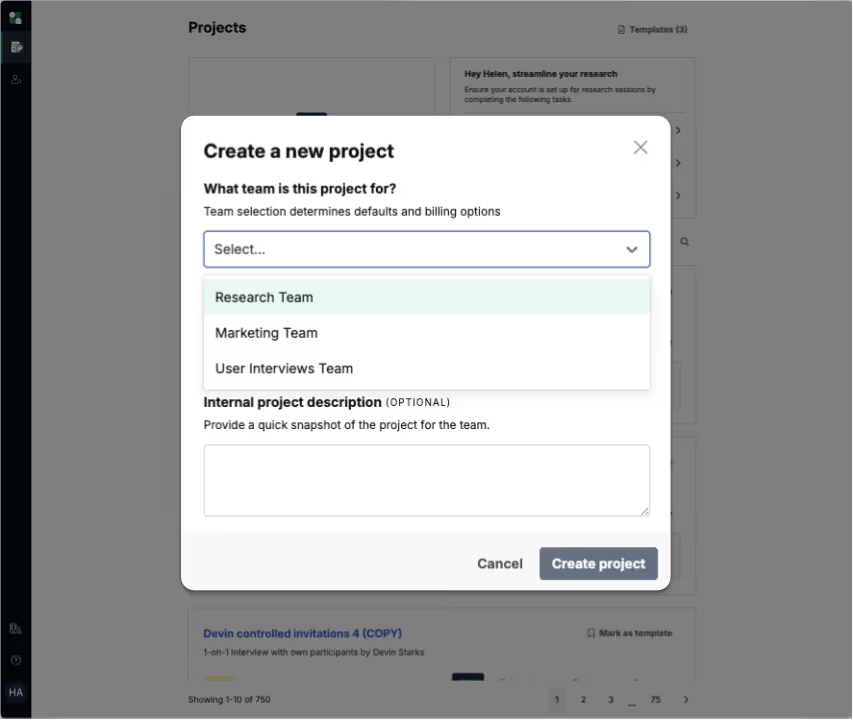
When a user who belongs to more than one team creates a new project (or duplicates/creates a project from a template), they will be prompted to select the team it belongs to. This ensures that the project will bill to the specified team.
FAQ
Who can create teams in my organization?
Only Owners (formerly Org Admins) on a Recruit Custom and/or Hub subscription have the ability to create Teams. Administrators (formerly Team Admins) have full edit rights to the teams they belong to.
Can a researcher create projects on multiple teams?
Yes, users can belong to and create projects on more than one team. When creating the project, they will be prompted to select the team it belongs to. This ensures the project is billed to the specified team.
Are there new roles/role names, and what are they?
Yes—now that roles exist at the organization level, we’ve updated roles and permissions accordingly. Here is an overview of current roles (more detail on roles and permissions here):
- Owner (formerly Org Admin): Owners can make changes and set defaults for assets and membership on any team across the organization. Only owners can create teams and adjust user roles.
- Administrator (formerly Team Admin): Admins can make changes and set defaults for assets and membership on teams they belong to
- Researcher: Researchers can create and launch projects, and invite others to join User Interviews (non-SSO orgs only)
- Collaborator (formerly Teammate): Collaborators can view all projects on their team(s). They can have edit or view access on projects, but cannot create their own
How many teams can I create?
Up to 5 teams are included in every Hub CRM and Recruit Custom subscription (we can split your existing subscription among the teams you create). If you plan to exceed five teams, please reach out to your Account Manager.
How do I share prepaid balances with my team(s)?
To share a specific amount of your prepaid balance with your team(s): Add members to a team, then adjust access to the balance via your avatar > Account settings > Prepaid balances > Balance ID > Share with teammates.
How do I work with my CSM to set up and manage teams?
Your CSM can help advise you on a team structure and set up that works well for your organization’s needs. Once you’ve requested to create a new team, your CSM will work with you to get it set up within 2 business days.
Please work with your CSM to coordinate the following:
- Combining existing teams into one organization
- Deleting a team/teams
- Adjusting Recruit session allocation by team